
VIEW DEALS
Julia Pazin
SUBtember 2026, Twitch SUBtember, Twitch Stream Setup, Twitch Widgets, Twitch Alerts
SUBtember 2026: What Twitch Streamers Need to Know and How to Prepare
SUBtember 2026 is coming to Twitch with subscription discounts, a Bits bonus, bonus gift subscriptions, and a limited-time badge. If you are planning special streams around the promotion, this is a good time to prepare your scenes, alerts, widgets, and community goals.
This guide covers the details Twitch has confirmed and then turns them into a practical stream-prep checklist. For the official terms and the latest conditions, always check Twitch's SUBtember 2026 announcement before your event begins.
When is SUBtember 2026?
Twitch says SUBtember 2026 runs from August 28, 2026 at 10:00 AM PT through October 1, 2026 at 10:00 AM PT. The promotion lasts for more than 30 days, so you can prepare one main broadcast or plan several community moments across the period.
What happens during SUBtember?
Discounted subscriptions
Twitch has announced these subscription discounts on web and mobile:
25% off one-month subscriptions.
25% off three-month subscriptions.
30% off six-month subscriptions.
Twitch also says it covers the difference during SUBtember, so streamers continue to receive the same payout as they would for a full-price subscription. The offer applies only to specific new or converted subscriptions, so existing recurring subscriptions, Turbo subscriptions, and other excluded cases do not qualify automatically. Read the official terms before explaining the offer to your community.
Bits bonus for Custom Power-ups
From September 12 at 10:00 AM PT through September 18 at 4:00 PM PT, Twitch will add 10% to Bits used on Custom Power-ups of 100 Bits or more. Twitch gives the example of a viewer using Bits to help choose the next channel for a raid.
This bonus does not apply to Bits used on default Power-ups. Bits can also be used only on monetized channels where the channel owner has enabled them, so check your channel settings if you want to build a community moment around this part of SUBtember.
Bonus gift subscriptions
Twitch has announced two bonus gift-subscription moments:
On August 28 at 3:00 PM PT, bonus gift subscriptions will be part of the State Farm Gamerhood finale across participating Gamerhood channels. Twitch says State Farm will gift nearly 100,000 subscriptions.
From September 25 at 10:00 AM PT through October 1 at 10:00 AM PT, Minecraft Dungeons II will add one free gift subscription for every five new one-month community gift subscriptions purchased, subject to the official terms and the same subscription tier.
The Gamerhood activation is limited to participating channels, and the finale offer has its own purchase conditions. Do not present either one as a bonus that applies to every Twitch channel.
A limited-time SUBtember badge
Viewers can unlock the 2026 SUBtember badge by subscribing, gifting a subscription, or using Bits during the promotion. The badge is available for a limited time.
Hype Train emotes are retiring
Twitch also says the current Hype Train emotes will be retired when SUBtember ends. Viewers who want them should collect them before October 1 at 10:00 AM PT.
How should streamers prepare?
SUBtember gives your community a reason to participate, but your stream still needs to make each moment easy to understand. A clear layout can help viewers see what happened, what the current goal is, and how they can join the conversation.
Mark the important dates. Add the start of SUBtember, the Bits bonus window, and the gift-sub finale to your content calendar.
Choose one or two community goals. Use a goal that fits your channel, such as a subscription milestone, a session challenge, or a special stream unlock. Keep the rules clear and avoid promising outcomes you cannot guarantee.
Test every alert before going live. Check the size, sound, timing, and placement of your subscription, cheer, raid, and follow alerts in the exact scenes you plan to use.
Keep recent activity visible. A viewer may miss a single alert. An event list can keep recent follows, subscriptions, cheers, and raids visible for longer.
Give the community a visual progress marker. A goal bar can make a milestone or custom challenge easier to follow without interrupting the broadcast to explain it repeatedly.
Explain the Twitch conditions. Tell viewers which moments are official Twitch promotions, which are your own channel activities, and which bonuses are limited to specific channels or time windows.
StreamSpell tools for a SUBtember-ready layout
Subathon Widget for SUBtember
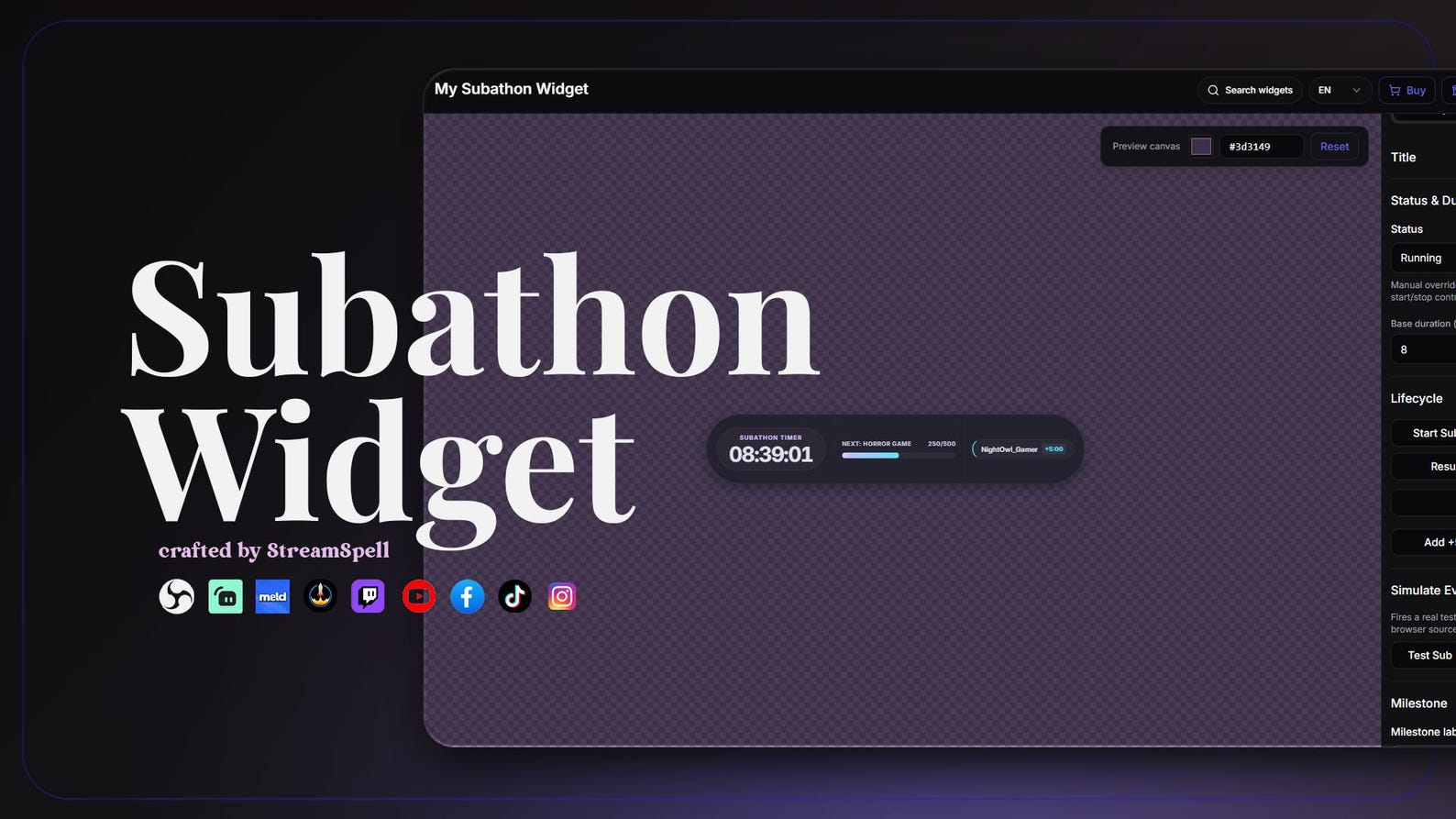
The Subathon Widget is a hosted widget for subathons, timer-based events, live challenges, charity streams, marathon streams, and community goals. It displays a live countdown timer with optional goal progress, next reward text, and supporter activity. You can customize the timer and visual styling, copy its Browser Source URL, and add it to OBS Studio, Streamlabs Desktop, StreamElements, or another app that supports Browser Sources.
The Widget Hub also offers the Widget Pass for access to all premium widgets and premium skin packs. If you only need one, individual premium widgets can be purchased separately.
Event Countdown for your schedule
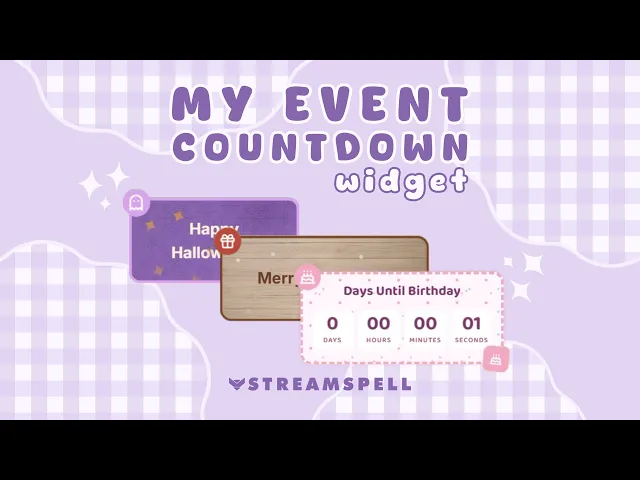
A countdown can give your community a simple reminder that a special stream is coming. The StreamSpell Event Countdown Widget can be customized for a target date and added through a Browser Source in OBS Studio, Streamlabs, StreamElements, and other compatible setups.
Show recent community activity
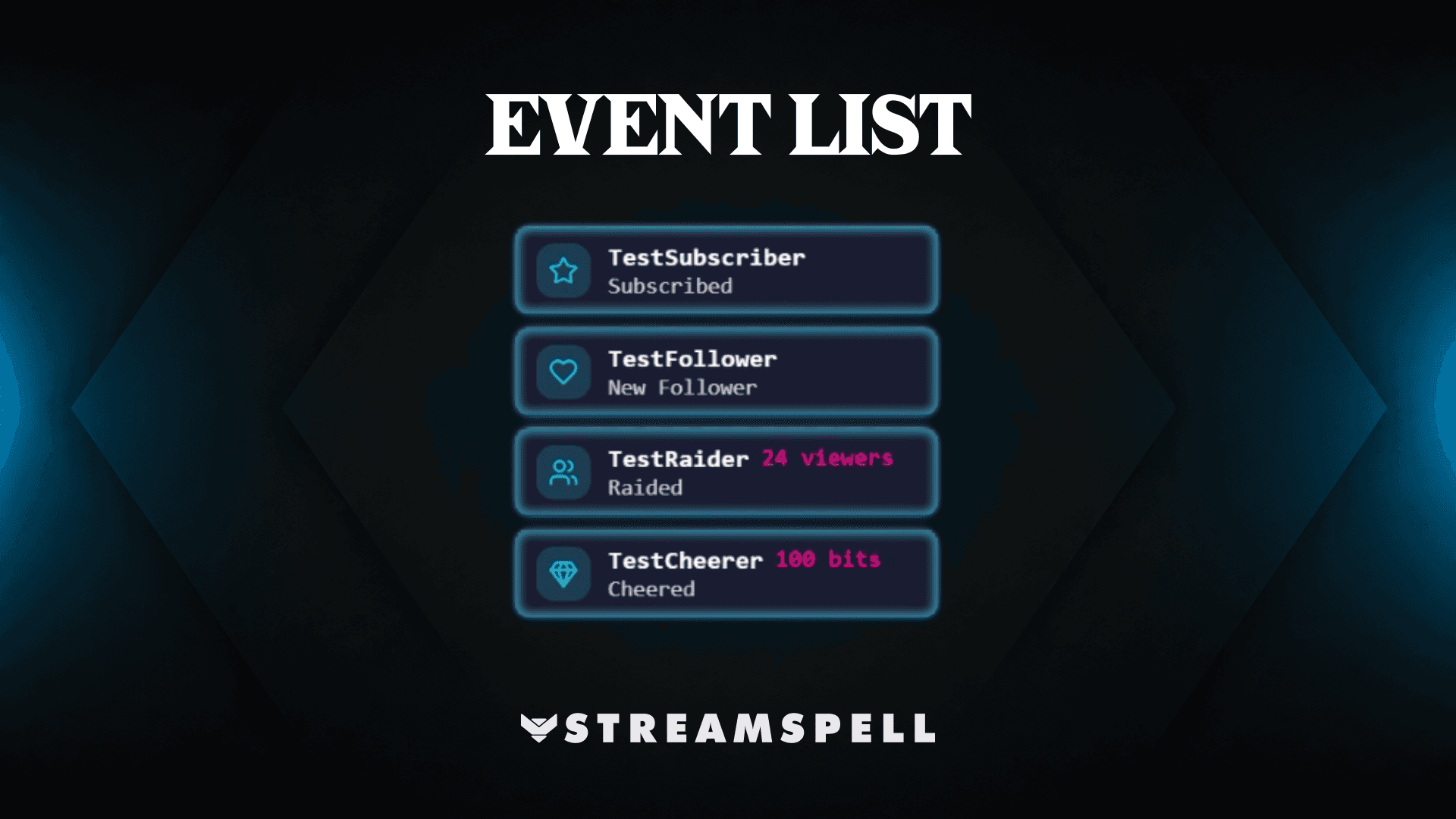
The Event List Widget is designed to show recent follows, subscriptions, cheers, and raids in a running feed. It can work alongside alerts: the alert creates the immediate moment, while the event list keeps the latest activity visible.
Track a goal without covering gameplay
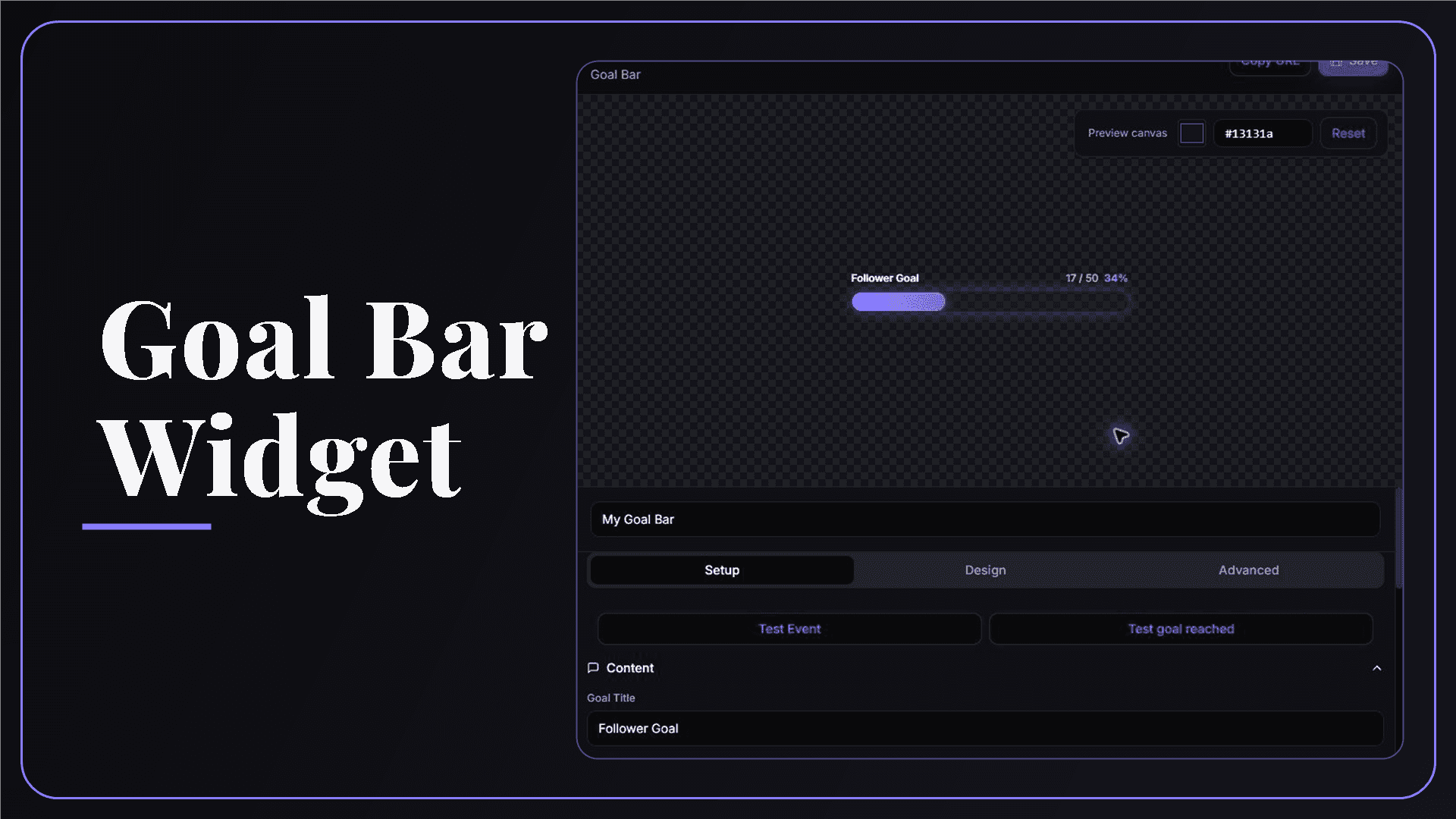
Use the Goal Bar Widget for a follower goal, subscription milestone, cheer or raid target, session challenge, or custom community goal. Keep the title short and place the bar where viewers can read it without covering important game information.
Keep chat part of the broadcast
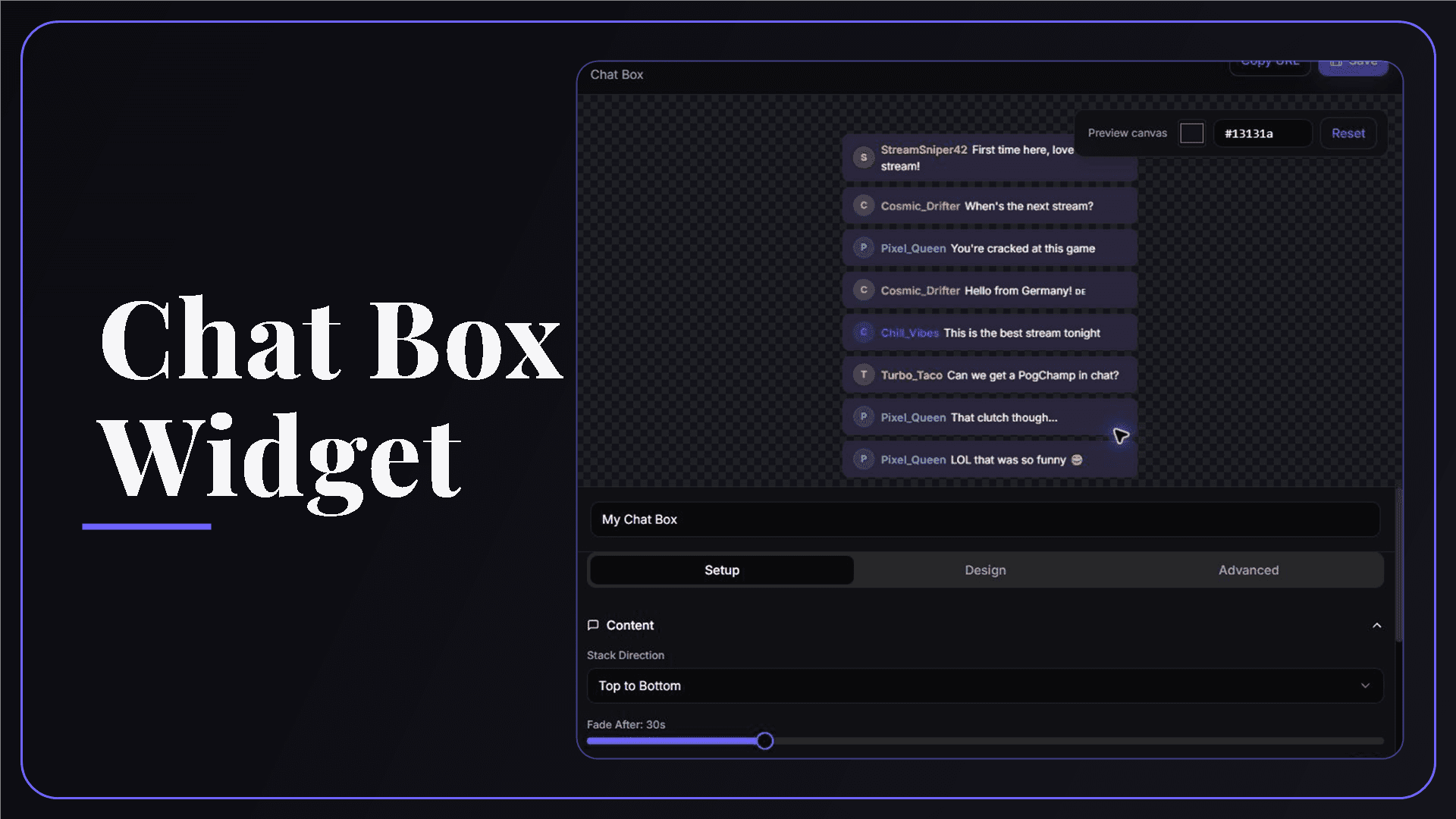
The Chat Box Widget can bring Twitch chat into your scene through a customizable Browser Source. It is especially useful for Just Chatting scenes, community events, and layouts that may also be shared as clips or vertical content.
Match the visual language with alerts
Alerts make community moments feel intentional and recognizable. You can start with the free animated stream alerts guide or browse the StreamSpell Store for matching visual packages.
Build the setup with free widgets
If you are assembling a layout from scratch, the StreamSpell Widget Hub offers browser-source tools that can be customized for your scenes. Our guides to free stream widgets and no-code Widget Hub tools explain the setup in more detail.
Find a widget style that fits your channel
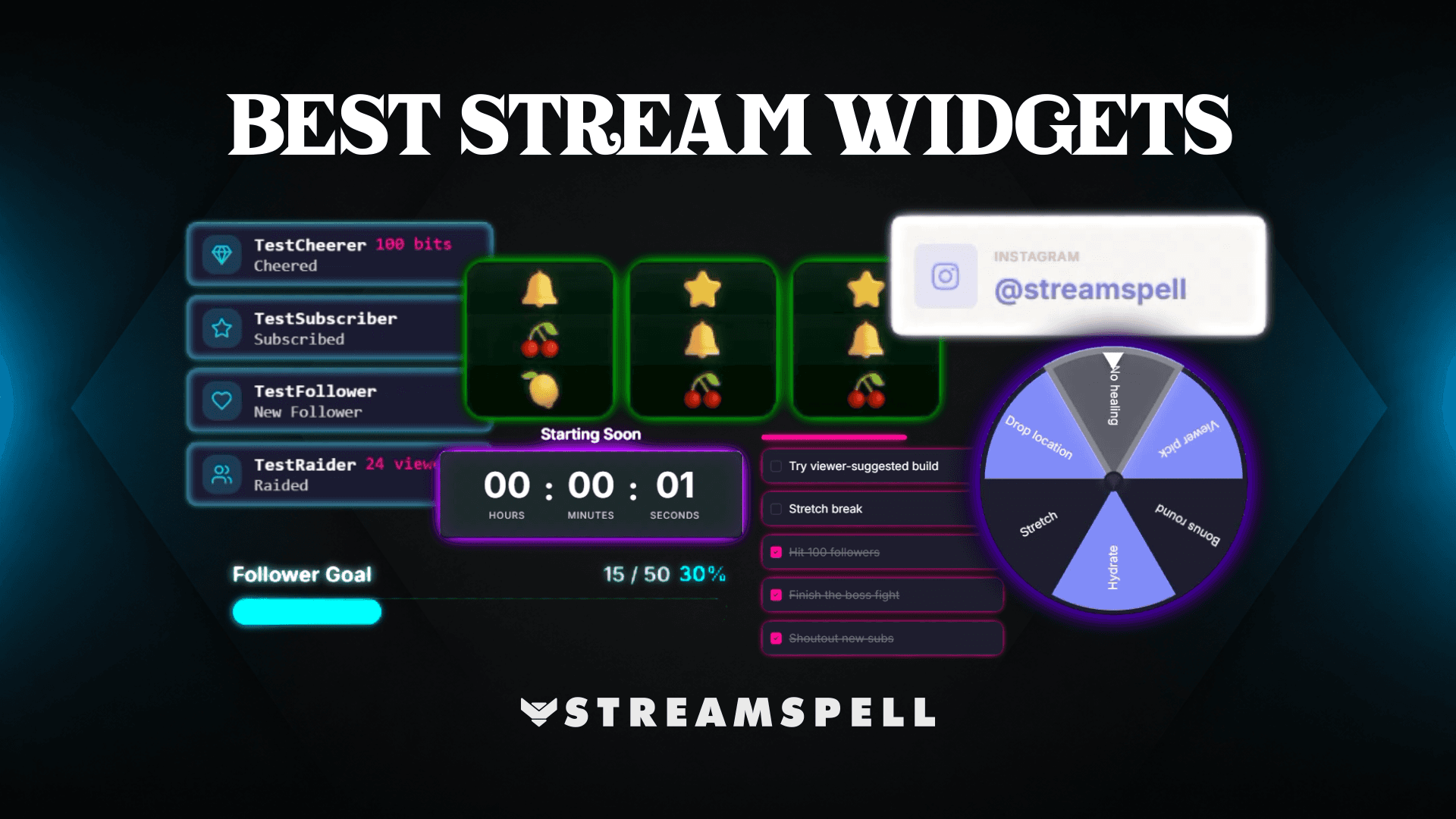
The free Widget Hub is a practical starting point, but StreamSpell also has a Stream Widgets collection for OBS and Streamlabs with themed options for different channel identities. Browse RPG and fantasy-inspired styles, FPS and tactical looks, celestial and space themes, lofi and cozy scenes, cute and dark directions, and seasonal filters such as Holidays and Christmas.
RPG, fantasy, and celestial styles
For a more complete visual system, explore RPG Stream Widgets, Spirit Blossom, Heaven & Hell, or Sun & Moon Stream Widgets. These options pair functional elements such as chat, event lists, goals, and alerts with a stronger visual theme. Check the product page for the exact contents and current availability.
Lofi, cozy, and space themes
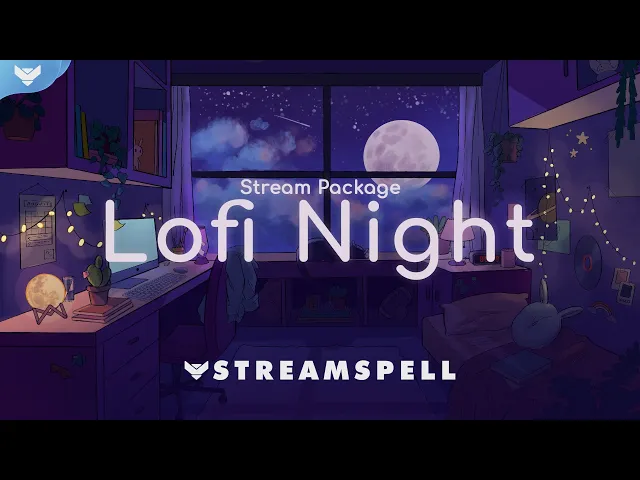
For softer or more atmospheric channels, browse Lofi Night Alerts and Widgets or Spacewalk Stream Widgets. The collection also includes other themed directions, so you can choose a visual language that fits your game, community, or seasonal broadcast.
SUBtember preparation checklist
Confirm the official dates and conditions before announcing your schedule.
Set up and test your countdown, alerts, event list, goal bar, and chat box.
Check that your Browser Sources use the correct dimensions for each scene.
Prepare a short explanation of the Bits bonus and its Custom Power-up requirement.
Make it clear when a community goal is your own channel activity rather than an official Twitch reward.
Keep the OBS installation guide nearby if you need to rebuild a scene quickly.
Official Twitch resources
For the most accurate terms and updates, use Twitch's own resources:
Build your SUBtember stream with StreamSpell
Ready to prepare your channel for the promotion? Explore the StreamSpell Widget Hub, browse StreamSpell overlays, alerts, and widgets, or request a custom stream design built around your channel's identity.
For installation help, visit our overlay and alert support or widget support.
Thank you for following our blog!
See you in the next post 💙
Level up your stream with practical guides for OBS, Twitch, YouTube and Stream Deck.

AI Stream Deck Profile Generator: Build Profiles Faster
Build Stream Deck profiles faster with Deck Smith, a free AI Stream Deck profile generator by StreamSpell.

40 Webcam Overlay Bundle by StreamSpell
Get 40 stream-ready webcam overlays with animated styles, color customization, and themes like anime, neon, RPG, cute, and more.

5 Strategies for Staying Motivated as a Content Creator
Take care of yourself with these quick tips for staying motivated throughout your content creation journey.
Browse All Articles
Browse Stream Overlays