GET THE WIDGET

Julia Pazin
Twitch, Twitch Sizes, Stream Overlays, OBS Studio, Streamlabs, Streaming Guides
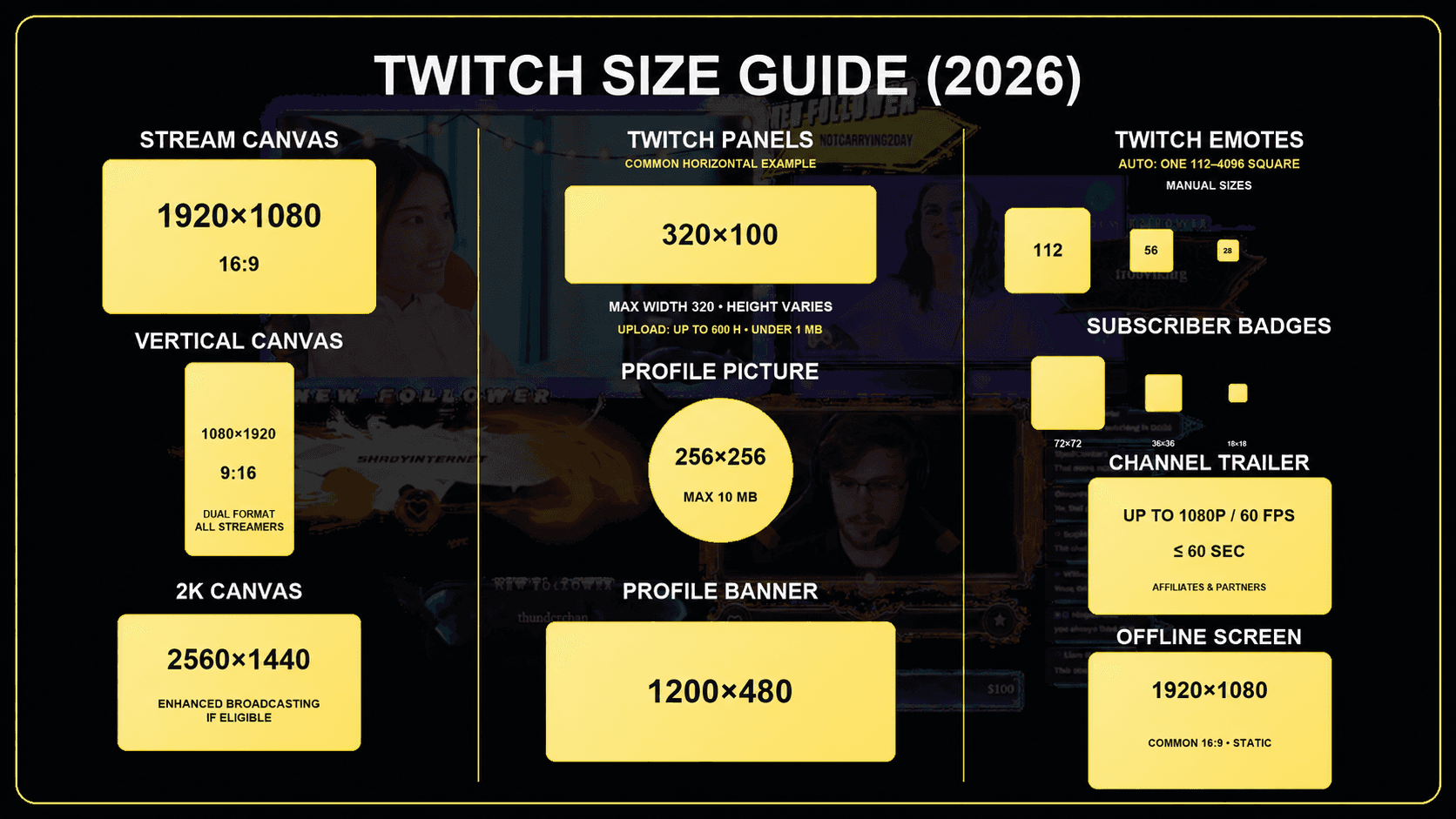
Twitch graphics now need to work across more than a traditional 16:9 desktop stream. In 2026, Twitch Dual Format is available to all streamers, allowing creators to deliver horizontal and vertical layouts at the same time. Eligible channels can also use 2K streaming when it appears in Advanced Broadcast Settings. That means a modern Twitch sizing guide should cover channel graphics, overlays, mobile-safe placement, OBS and Streamlabs setup, and performance, not just a list of pixel dimensions.
This guide brings those requirements together. Use the quick chart below for fast answers, then check the detailed sections before exporting your files.
Twitch Graphic Sizes: Quick Reference for 2026
Quick reference: current Twitch graphics dimensions and formats for 2026.
Graphic | Recommended Size | Important Notes |
|---|---|---|
Horizontal stream canvas | 1920 × 1080 | Standard 16:9 Full HD canvas |
Vertical stream canvas | 1080 × 1920 | Available to all streamers; keep essential content inside the safe area |
Optional 2K canvas | 2560 × 1440 | For eligible 1440p streaming workflows |
Profile picture | 256 × 256 | Square source; displayed as a circle |
Profile banner | 1200 × 480 | Keep important artwork toward the left |
Info panel | 320 px wide; up to 600 px tall | Use less than 1 MB as the conservative export target |
Offline screen | 1920 × 1080 | Recommended static 16:9 design size |
Static emote | 112 × 112 or 28/56/112 | Automatic or manual resizing options |
Subscriber badge | 18/36/72 square | Transparent PNG; maximum 25 KB per file |
Video thumbnail | 1280 × 720 minimum | 16:9 aspect ratio |
What Changed for Twitch Graphics in 2026?
The biggest change is Twitch Dual Format. It is now available to all streamers. Prepare a horizontal 16:9 layout and a 1080 × 1920 vertical 9:16 layout for mobile viewers, with essential content positioned inside the safe viewing area.
Do not simply crop your horizontal overlay into a vertical rectangle. Reposition the webcam, alerts, gameplay focus and labels so the vertical version remains readable. Twitch can place chat over the vertical experience automatically, so adding a second permanent chat box to the vertical canvas may cover important content.
Twitch also introduced broader 2K streaming support. Eligible channels can stream at 1440p when 2K appears in Advanced Broadcast Settings. Twitch currently lists minimum upstream bandwidth of 12.5 Mbps for 1080p or 14 Mbps for 2K with server-side transcoding support, and 13.5 Mbps for 1080p or 22.5 Mbps for 2K without that support. A 2560 × 1440 overlay master is therefore useful for creators using a full 2K workflow, although 1920 × 1080 remains the practical standard for most channels.
Need a design that already considers horizontal and vertical layouts? Explore our Twitch Dual Format stream packages.
Twitch Profile Picture Size
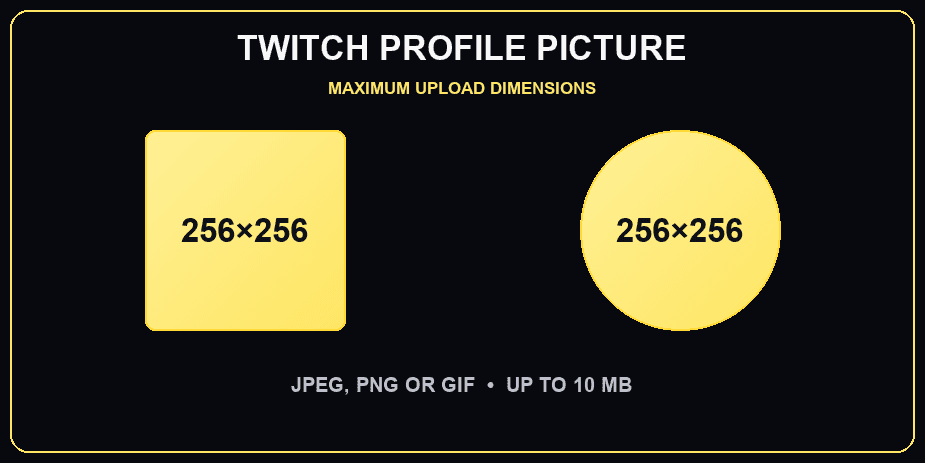
Use a square 256 × 256 image for your Twitch profile picture. Twitch accepts GIF, JPG and PNG files up to 10 MB, but a transparent PNG is usually the safest option for logos and illustrated avatars.
Recommended canvas: 256 × 256 pixels
Aspect ratio: 1:1
Maximum file size: 10 MB
Formats: GIF, JPG or PNG
Because the image is displayed as a circle, keep faces, logos and important details away from the four corners. Test the avatar at a small size before uploading it; thin text and tiny details can disappear quickly.
Twitch Profile Banner Size
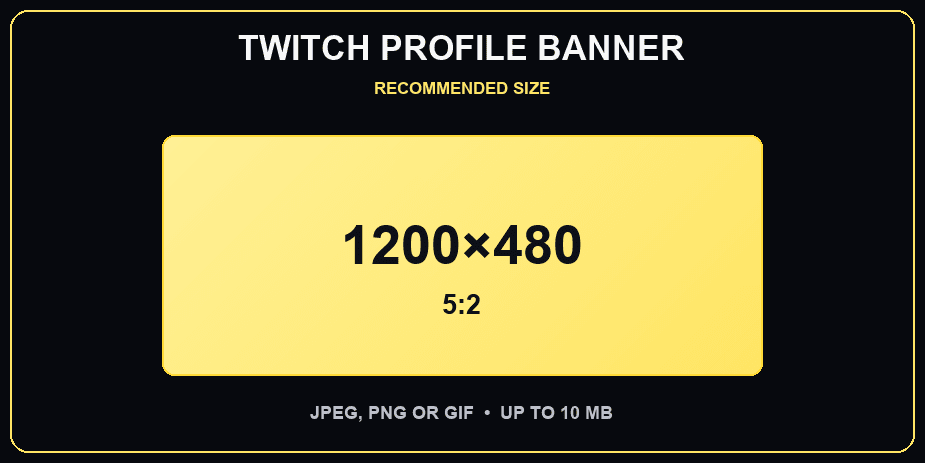
The official recommended Twitch profile banner size is 1200 × 480 pixels. Twitch scales the banner on different displays and interface elements can cover part of it, so the most important artwork, logo or message should remain toward the left and away from the outer edges.
Recommended size: 1200 × 480 pixels
Recommended formats: JPG or PNG
Maximum file size: 10 MB
You may create a larger design master while working, but export the final Twitch banner at the recommended dimensions. A larger source file is a production choice, not a different Twitch requirement.
Twitch Panels Size
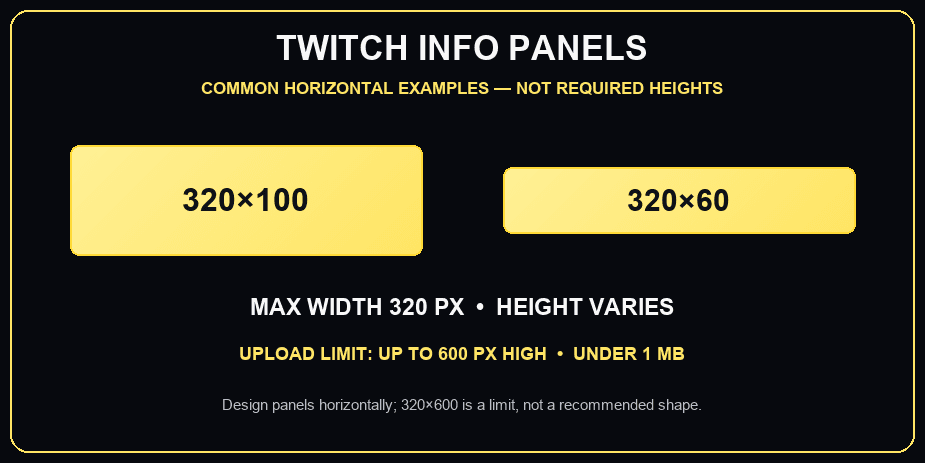
Twitch info panel examples are shown horizontally; 320 × 600 is a limit, not a recommended panel shape.
Twitch panels appear below your stream and can introduce your channel, explain rules, list your schedule, link to social profiles or direct viewers to your store and community.
Use a maximum width of 320 pixels. Twitch help pages currently show different height and file-size limits, so the safest practical target is no taller than 600 pixels and under 1 MB. Always treat the uploader in your own Twitch dashboard as the final check.
Maximum width: 320 pixels
Conservative maximum height: 600 pixels
Conservative file target: under 1 MB
Best formats: PNG for transparency or JPG for smaller photographic files
For a clean channel layout, keep related panels consistent in width, typography, spacing and illustration style. Avoid placing long paragraphs inside the image itself because the text will be harder to read and cannot be indexed or translated.
Browse StreamSpell overlay packages with matching Twitch panels.
Twitch Offline Screen Size

A 1920 × 1080 canvas is the recommended design size for a Twitch offline screen or video player banner. It matches the standard 16:9 stream canvas and remains easy to reuse in OBS scenes.
Recommended design size: 1920 × 1080 pixels
Aspect ratio: 16:9
Recommended formats: JPG or PNG
Twitch does not natively animate the video player banner. If you upload an animated file, do not assume viewers will see the animation. Use a clear static design with a short message, your schedule or a call to follow the channel.
Twitch Emote Sizes in 2026
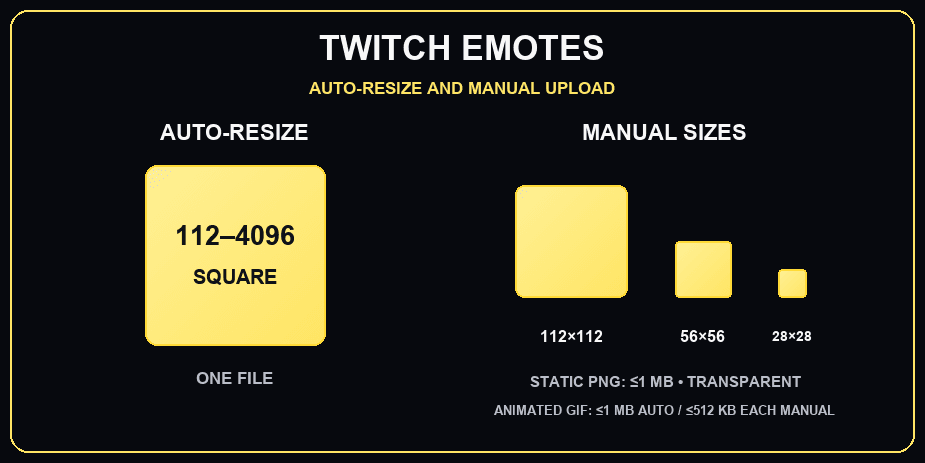
Automatic resizing uses one square file; manual upload requires 112 × 112, 56 × 56 and 28 × 28 versions.
Static Twitch emotes
Twitch offers two upload workflows for static emotes. With automatic resizing, upload one square PNG between 112 × 112 and 4096 × 4096. With manual mode, provide separate 28 × 28, 56 × 56 and 112 × 112 PNG files. The maximum file size is 1 MB.
Automatic resizing: one square PNG from 112 × 112 to 4096 × 4096
Manual resizing: 28 × 28, 56 × 56 and 112 × 112
Maximum file size: 1 MB
Background: transparent
Animated Twitch emotes
Animated emotes use GIF files. You can upload one square file for automatic resizing or provide the three manual sizes. Twitch currently allows up to 1 MB for an automatically resized animated emote, or up to 512 KB for each manually resized file.
Design every emote for the smallest display size first. Strong silhouettes, simple expressions and high contrast generally work better than detailed artwork.
See the StreamSpell emotes and subscriber badges guide.
Browse premium emotes and subscriber badges.
Twitch Subscriber Badge Sizes
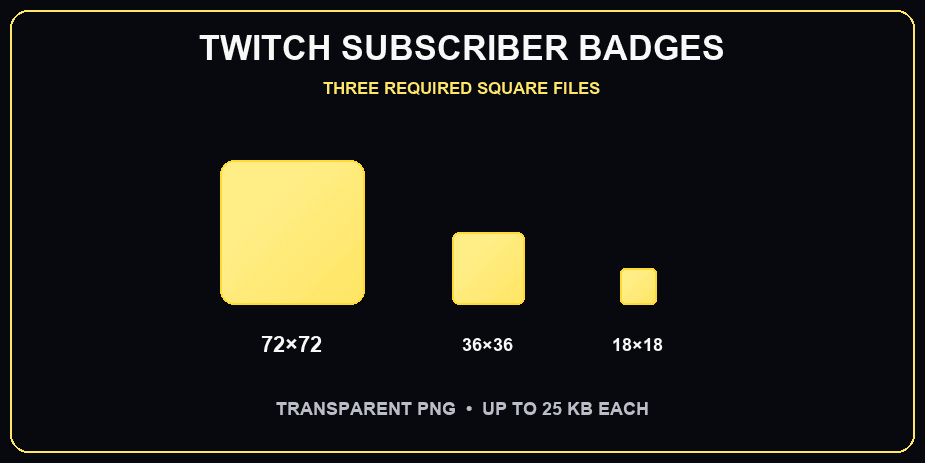
Subscriber badges require three transparent PNG files: 72 × 72, 36 × 36 and 18 × 18.
Subscriber badges continue to use three square PNG sizes: 18 × 18, 36 × 36 and 72 × 72 pixels. Each file should have a transparent background and remain at or below 25 KB.
Required sizes: 18 × 18, 36 × 36 and 72 × 72 pixels
Format: transparent PNG
Maximum file size: 25 KB per file
Create badges as one coherent progression. Each milestone should feel connected while remaining distinguishable at 18 × 18 pixels.
Twitch Alert Sizes for Streamlabs and StreamElements
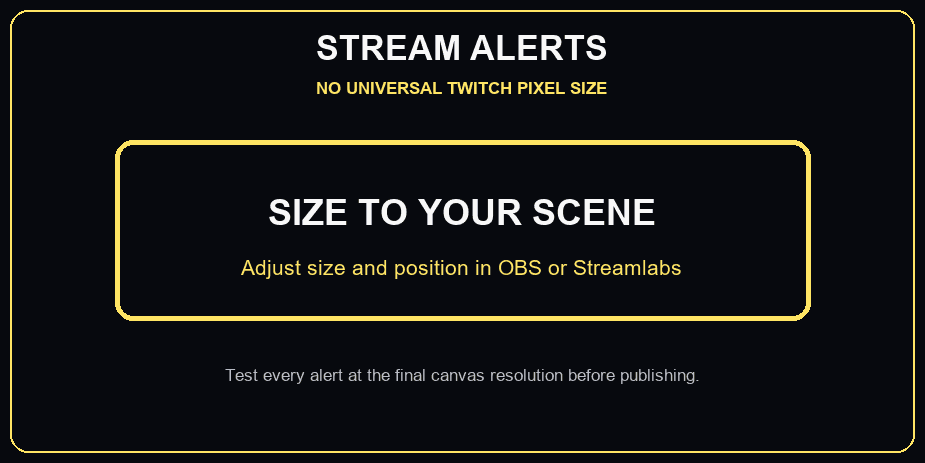
Twitch alerts have no universal pixel size; resize them for the final OBS or Streamlabs scene.
Twitch does not define one mandatory alert dimension because alerts are normally displayed through tools such as Streamlabs, StreamElements or another browser-source provider. Your OBS or Streamlabs canvas and the Alert Box dimensions determine how the asset appears.
A practical starting area is approximately 700–750 pixels wide by 200–250 pixels tall, but this is a design recommendation rather than a Twitch upload requirement. Keep transparent space tight around the artwork and preview every follower, subscriber, donation and raid variation.
Modern alert tools commonly support formats including PNG, GIF, JPG, WEBM and MP4, depending on the provider. Even when a service allows a large upload, smaller optimized files start faster and are less likely to stutter. Aim for roughly 2–3 MB or less when visual quality allows.
Explore animated StreamSpell alerts.
Twitch Webcam Overlay Sizes
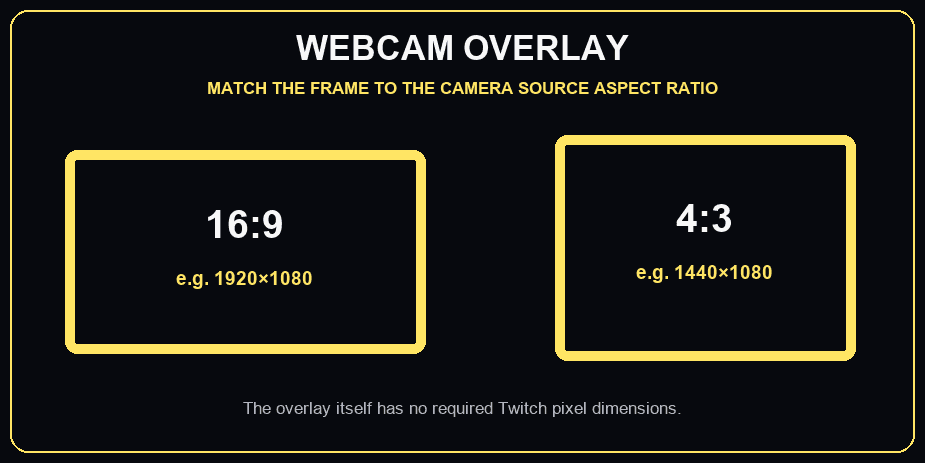
Match webcam frames to the source aspect ratio, commonly 16:9 or 4:3.
A webcam overlay does not have a universal Twitch upload size. Build it around the aspect ratio of the camera source and the canvas where it will be used.
16:9 camera master: 1920 × 1080
4:3 camera master: 1440 × 1080
Vertical layout: resize and reposition the frame for a 1080 × 1920 canvas
For static frames, use transparent PNG. For animated frames, WEBM usually offers better transparency and performance than a large GIF. Avoid covering game HUD elements, captions or Twitch’s mobile interface.
Download free webcam overlays for OBS, Streamlabs and Twitch.
Twitch Video and VOD Thumbnail Size

Use a 16:9 thumbnail with a minimum resolution of 1280 × 720 pixels. Keep the subject and headline readable on mobile, use a strong focal point and avoid repeating long titles inside the image.
Minimum recommended size: 1280 × 720 pixels
Aspect ratio: 16:9
Best practice: export a compressed JPG or PNG with clear mobile contrast
Use a horizontal 16:9 thumbnail at a minimum of 1280 × 720 pixels.
How to Set Up Twitch Overlays in OBS or Streamlabs
Your Twitch asset dimensions are only one part of the setup. Match the overlay to the base canvas in your streaming software, then test every scene at the resolution and orientation viewers will receive.
Set the horizontal base canvas to 1920 × 1080, or to 2560 × 1440 if your complete workflow supports 2K.
Create a separate 1080 × 1920 vertical composition when using Twitch Dual Format.
Add static assets as Image Sources and animated assets as Media Sources or Browser Sources, depending on the product.
Check webcams, alerts, labels and game capture against the vertical safe area.
Run a private recording or test stream before going live.
For detailed setup instructions, read the OBS Studio Guide. Still choosing software? Compare Streamlabs and OBS Studio.
Free vs. Premium vs. Custom Twitch Graphics
Free overlays
Free graphics are ideal for testing a new layout, starting a channel or experimenting with Dual Format before investing in a full identity. Choose files that clearly state their dimensions, formats and software compatibility.

See our free animated stream overlays for 2026 guide.
Browse free StreamSpell overlays.
Premium stream packages
Premium packages are useful when you want coordinated screens, alerts, panels, transitions and webcam frames without commissioning each element separately. Check whether the package includes both horizontal and vertical layouts if you plan to use Dual Format.
Explore the Lofi Night Stream Package.
Browse all premium stream overlay packages.
Custom stream design
Custom design is the best fit when your channel needs a unique visual identity, unusual scene structure, custom animation or a complete horizontal-and-vertical system built around your content.
See the Strawberry Seaking custom stream design case study.
Request custom stream overlays, alerts and widgets.
Free and Premium Stream Widgets in the StreamSpell Widgets Hub
The StreamSpell Widgets Hub lets creators build and customize no-code stream widgets for OBS Studio, Streamlabs Desktop and StreamElements. Start with free widgets, then compare premium widgets and skin packs when you want more formats, designs and customization options.
Frequently Asked Questions
What is the best Twitch overlay size in 2026?
Use 1920 × 1080 for a standard horizontal overlay and 1080 × 1920 for a high-resolution vertical Dual Format layout. Eligible 2K workflows can use a 2560 × 1440 horizontal master.
Does Twitch require a vertical overlay?
No. A vertical layout is relevant when you choose to use Twitch Dual Format. If you use it, design the vertical scene intentionally instead of relying on a simple crop.
Should Twitch panels be 320 pixels wide?
Yes. Keep panel images at or below 320 pixels wide. Because Twitch help pages currently list different height and file-size limits, use 600 pixels and 1 MB as conservative maximum targets and confirm the uploader in your dashboard.
Do I still need three emote sizes?
Not always. Twitch’s automatic resizing workflow accepts one square PNG between 112 × 112 and 4096 × 4096. Manual mode still uses 28 × 28, 56 × 56 and 112 × 112 files.
Are Twitch alert dimensions fixed?
No. Alert dimensions depend on your alert provider and OBS or Streamlabs scene. Design for the available source area and optimize the file for quick loading.
Final Twitch Graphics Checklist
Prepare 1920 × 1080 horizontal scenes.
Add a purpose-built 1080 × 1920 layout if you use Dual Format.
Use 2560 × 1440 only when the entire 2K workflow supports it.
Export channel assets at the dimensions listed in the quick reference.
Keep essential content inside mobile-safe areas.
Optimize animations and test every source in OBS or Streamlabs.
Recheck the Twitch uploader before publishing because platform limits can change.
Related StreamSpell Guides
Official Sources
Platform requirements can change. This article was last checked against official Twitch documentation in September 2026.
💙 Extra Resources
Thank you for following our blog!
See you in the next post 💙
Level up your stream with practical guides for OBS, Twitch, YouTube and Stream Deck.

AI Stream Deck Profile Generator: Build Profiles Faster
Build Stream Deck profiles faster with Deck Smith, a free AI Stream Deck profile generator by StreamSpell.

40 Webcam Overlay Bundle by StreamSpell
Get 40 stream-ready webcam overlays with animated styles, color customization, and themes like anime, neon, RPG, cute, and more.

5 Strategies for Staying Motivated as a Content Creator
Take care of yourself with these quick tips for staying motivated throughout your content creation journey.
Browse All Articles
Browse Stream Overlays