VIEW DEALS

Daniel Mayhe
Twitch, OBS Studio, Stream Widgets

A chat overlay gives viewers a reason to look beyond the game. The StreamSpell Chat Box Widget displays Twitch messages on your broadcast in real time, with enough visual control to make the conversation feel like part of your stream instead of a generic box pasted on top.
What Is the Chat Box Widget?
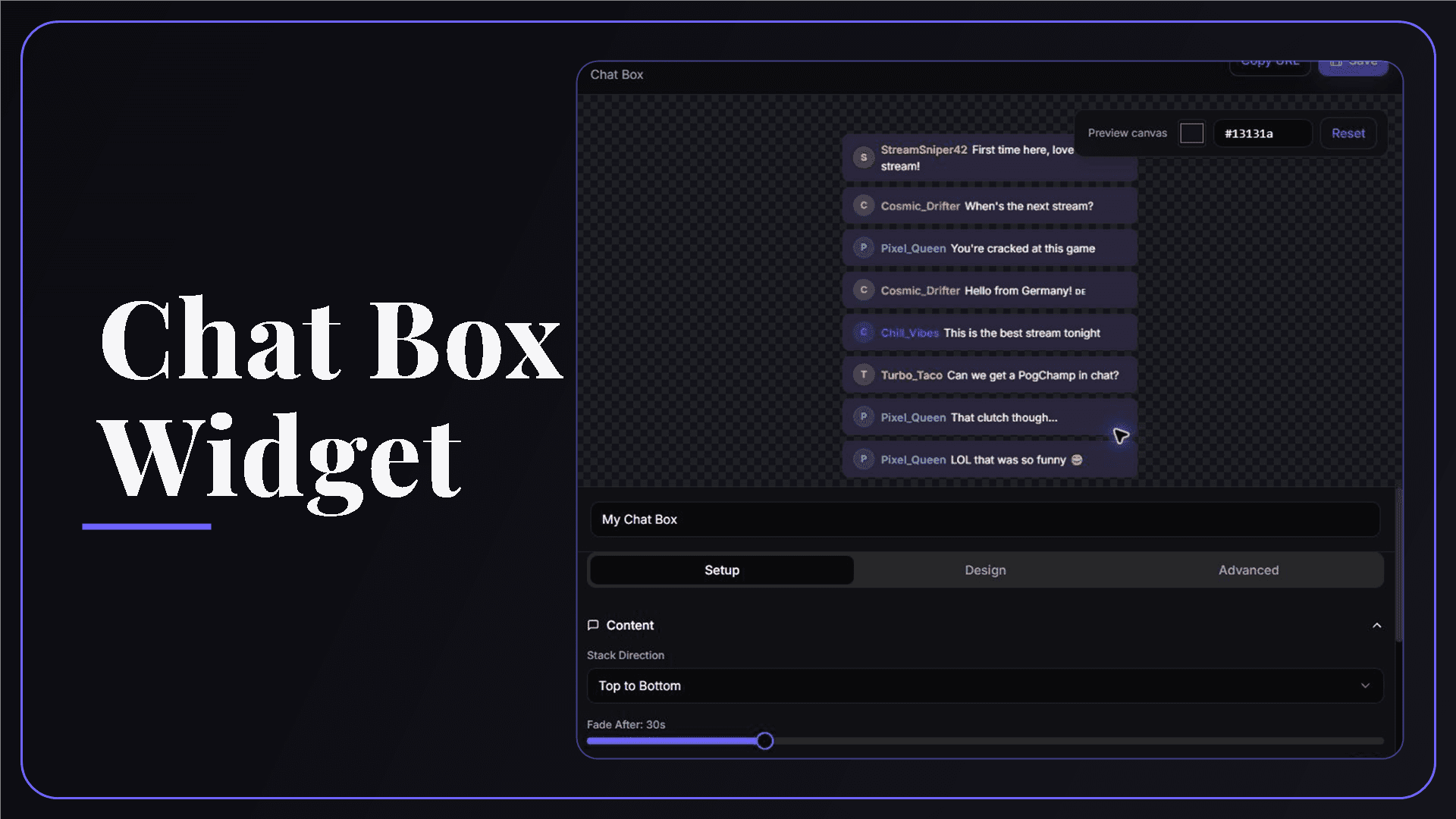
The Chat Box Widget is a customizable Twitch chat overlay that runs as a browser source. You design it in the StreamSpell Widgets Hub, copy its private URL, and add that URL to OBS Studio or another streaming app that supports browser sources.
Once your Twitch account is connected, new chat messages can appear directly in the overlay. This makes chat readable in clips, VODs, vertical edits, and fullscreen layouts where the platform chat panel is not visible.
What the Chat Box Widget Does
The widget can display:
Displays incoming Twitch messages on your stream.
Shows viewer names with distinct colors for easier scanning.
Can show or hide viewer avatars and timestamps.
Lets messages stack from top to bottom or bottom to top.
Automatically fades older messages after the time you choose.
Limits how many messages remain visible at once.
The practical benefit is simple: viewers can follow the conversation without opening chat in a separate window, while you keep control over how much screen space the overlay uses.
Chat Box Customization Options
A chat overlay has to stay readable without covering the content people came to watch. StreamSpell gives you controls for both sides of that balance:
Layout: choose the stack direction, maximum number of messages, fade timing, and compact spacing.
Message style: adjust the chat bubble appearance, background color, opacity, border, and border width.
Text: customize message, username, and accent colors.
Identity: decide whether avatars and timestamps should appear.
Canvas: preview the widget against a transparent or custom-colored canvas before adding it to your scene.
Start with the colors already used in your overlay package, then test the widget over both bright and dark gameplay. A subtle message background usually preserves readability better than text floating directly over the game.
How to Add the Chat Box Widget to OBS Studio
Follow these steps to set it up:
Open the StreamSpell Widgets Hub and connect your Twitch account.
Create or open a Chat Box Widget.
Adjust the layout, colors, messages, and visibility settings, then save the widget.
Use Copy URL to copy the widget's private browser-source address.
In OBS Studio, open the scene where chat should appear. Under Sources, select +, then choose Browser.
Paste the URL, set the browser-source dimensions to match the space in your layout, and confirm.
Send a test message in Twitch chat and check the result in OBS before going live.
Can I use it in Streamlabs, StreamElements, or Meld?
Yes. The widget uses a browser-source URL, so the same saved design can be added to OBS Studio, Streamlabs Desktop, StreamElements, or Meld wherever those tools accept a browser or web source. The menu names vary, but the setup is the same: add a browser source and paste the private widget URL.
Where a Chat Overlay Works Best
Good placements include:
Just Chatting scenes: keep the conversation visible while chat is the main event.
Gameplay with quiet corners: use a compact layout in an area that does not cover important HUD elements.
Vertical streams and clips: include context that would otherwise disappear outside the platform page.
Community events: preserve reactions during reveals, challenges, watch parties, and multiplayer sessions.
Requirements and Privacy
Live messages require a connected Twitch account. Your browser-source URL is private: treat it like a key to the widget and do not display it on stream, publish it in screenshots, or share it publicly. If you change a setting, save the widget and confirm the updated result in your streaming software.
The Chat Box Widget is free. You can verify current compatibility and open the widget from the official Chat Widget page.
Premium Skins and the Widget Pass
StreamSpell releases new premium skins weekly, including themes inspired by different game genres. Availability varies by widget as the skin catalog expands. When a premium skin is available for this widget, it can be purchased separately or accessed through the Widget Pass.
Why Use StreamSpell for a Twitch Chat Overlay?
StreamSpell keeps the workflow focused: customize the overlay visually, save it, and add one browser source to your scene. There is no code to paste into your stream layout, and the real preview lets you judge spacing and contrast before the widget reaches OBS.
Create your Chat Box Widget in the StreamSpell Widgets Hub.
💙 Extra Resources
Keep building your stream with practical tools, setup guides, and original StreamSpell designs:
Thank you for following our blog!
See you in the next post 💙
Level up your stream with practical guides for OBS, Twitch, YouTube and Stream Deck.

AI Stream Deck Profile Generator: Build Profiles Faster
Build Stream Deck profiles faster with Deck Smith, a free AI Stream Deck profile generator by StreamSpell.

40 Webcam Overlay Bundle by StreamSpell
Get 40 stream-ready webcam overlays with animated styles, color customization, and themes like anime, neon, RPG, cute, and more.

5 Strategies for Staying Motivated as a Content Creator
Take care of yourself with these quick tips for staying motivated throughout your content creation journey.
Browse All Articles
Browse Stream Overlays