
GET THE WIDGET
Julia Pazin
streaming-guides, Best Stream Overlays

Best Stream Packages for Twitch Dual Format Streaming
Twitch Dual Format is now available to all streamers, and it is a big update for creators who want their live streams to look great on both desktop and mobile.
With Dual Format, streamers can broadcast horizontal and vertical versions of the same live stream at the same time. Desktop and TV viewers can still enjoy the classic 16:9 layout, while mobile viewers get a cleaner 9:16 version designed for phone screens, clips, and shareable moments.
For streamers, this is more than a technical update. It changes how layouts should be planned.
A regular horizontal overlay can look amazing on desktop, but it does not always work well inside a vertical frame. Some elements can become too small, alerts may cover important areas, and webcam frames, widgets, labels, and gameplay space may need a different layout to stay readable on mobile.
That is why vertical overlays and dual-output stream packages are becoming so useful. The best Dual Format setup is not just a cropped version of your regular stream. It is a layout designed to feel balanced, readable, and polished in both formats.
How to Find Dual Format Stream Packages on StreamSpell
If you are looking for stream packages that already support vertical layouts, you can find them directly on the StreamSpell Store.
Go to the Stream Overlays category and use the filter:
Features > Vertical Output Overlays
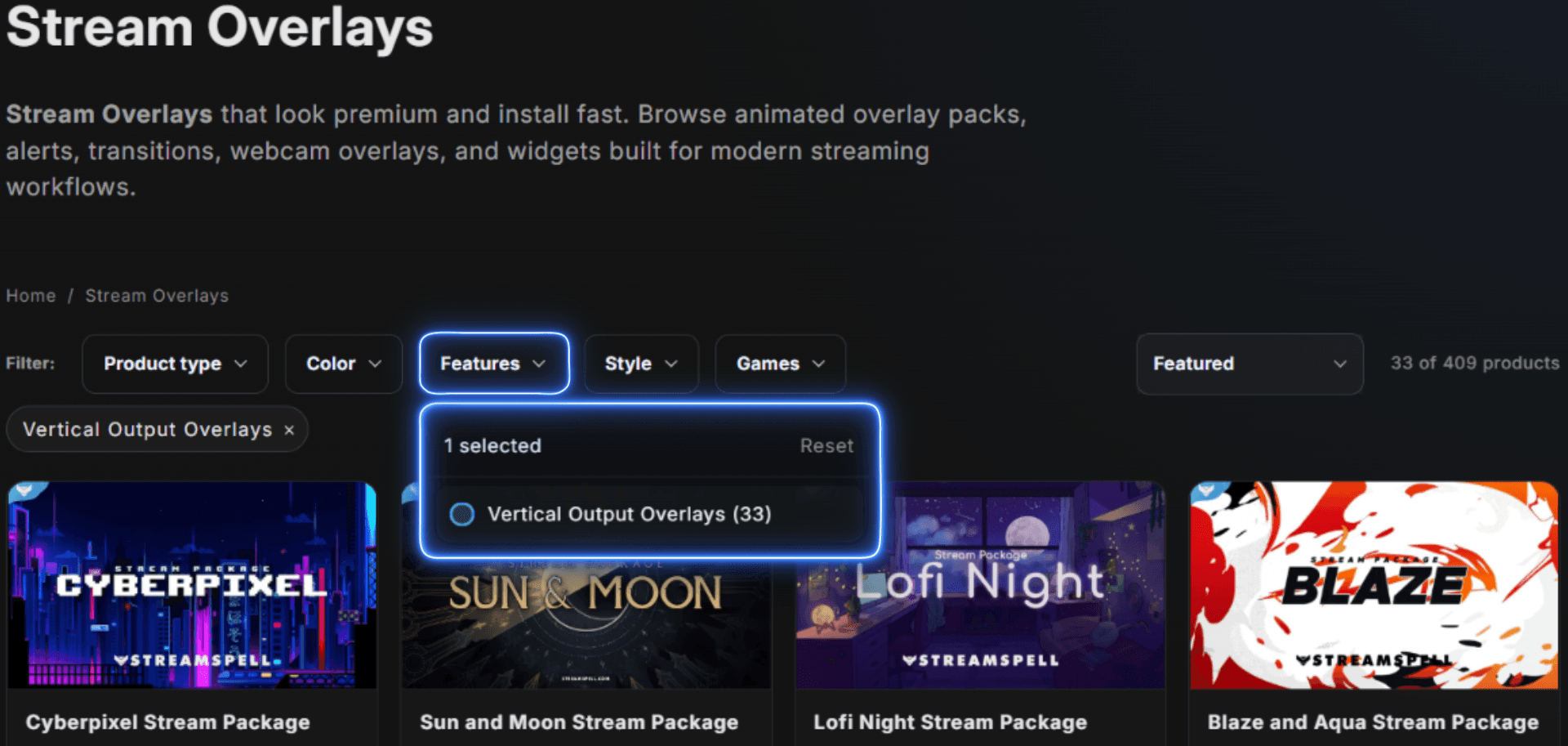
This filter helps you discover StreamSpell packages with vertical overlay assets made for Dual Format streaming, dual-output setups, multistreaming, and mobile-friendly layouts.
Browse StreamSpell stream overlays here!
Instead of redesigning every scene from zero, you can start with overlays that already include assets prepared for modern streaming workflows.
Best StreamSpell Packages for Twitch Dual Format
StreamSpell has several stream packages with vertical overlays, dual-output layouts, and assets that can help creators prepare for Twitch Dual Format.
Here are two great picks to start with.
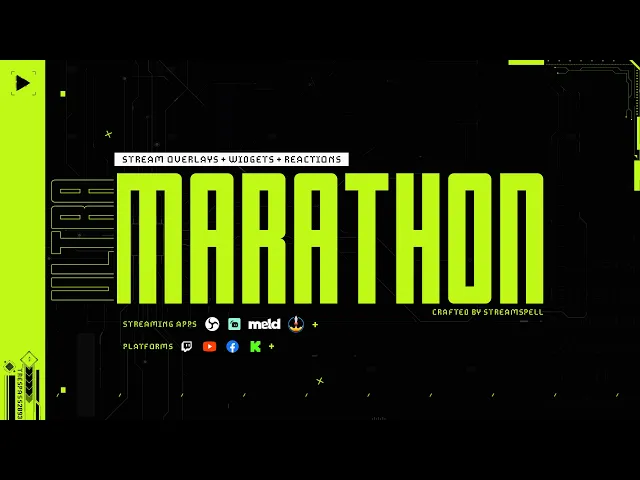
Marathon Stream Overlays and Widgets
The Marathon Stream Overlays and Widgets package is a complete sci-fi HUD setup for streamers who want a clean, futuristic, and premium-looking stream.
View the Marathon Stream Overlays and Widgets package here!
This package is perfect for FPS creators, sci-fi streams, competitive games, and streamers who want their channel to feel like a high-tech cockpit.
It includes animated overlays, widgets, reactive gameplay tracking, Stream Deck icons, an OBS profile, and vertical plus horizontal layouts. That makes it a strong choice for creators who want a setup that works well in both formats.
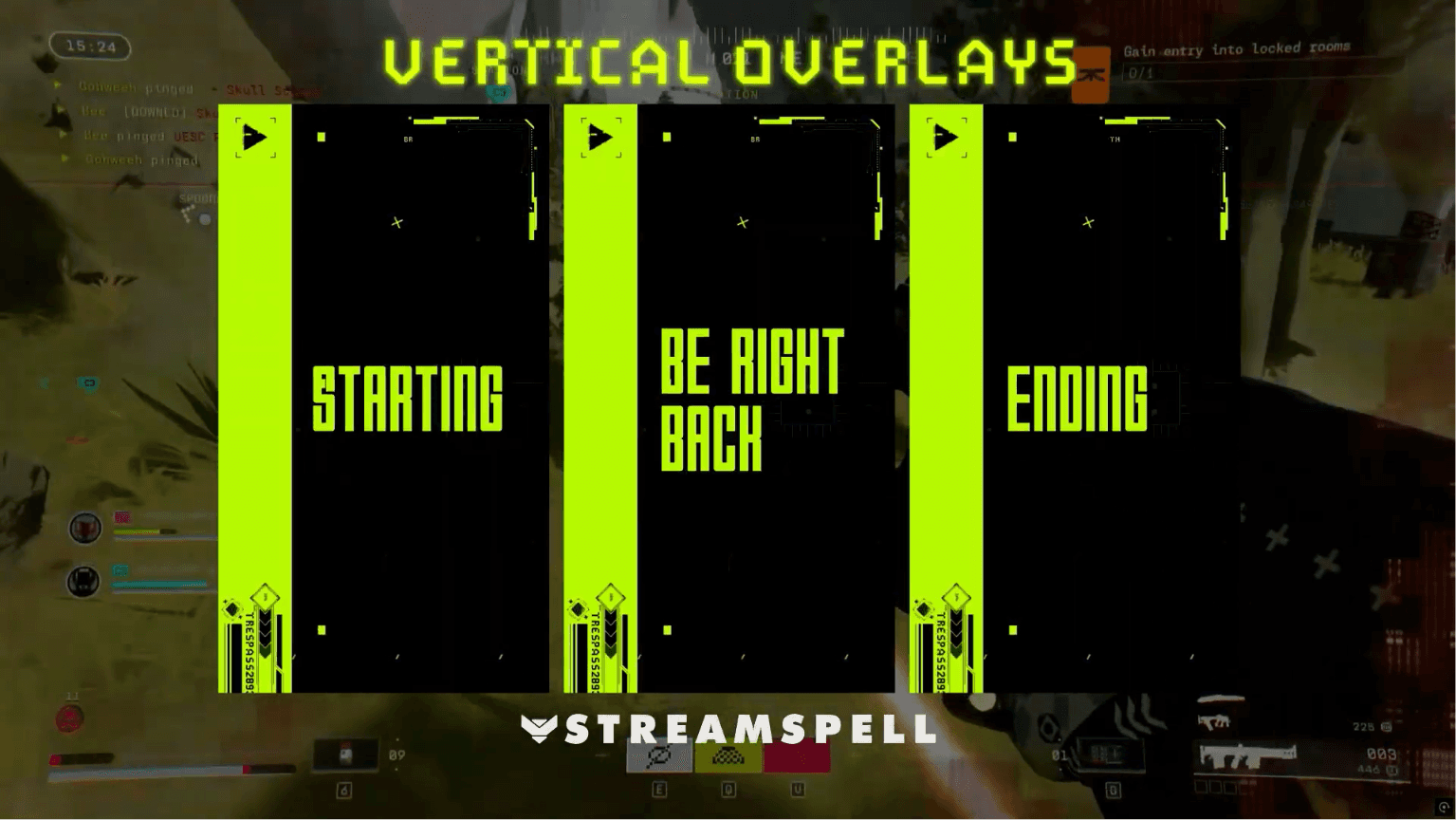
What makes it great for Twitch Dual Format:
• Vertical and horizontal layouts included
• Clean sci-fi HUD design that stays readable during gameplay
• Animated stream screens for Starting, BRB, Just Chatting, and Ending
• Stream widgets with matching HUD visuals
• Reactive overlays for supported games
• 500+ Marathon-style Stream Deck icons
• OBS Studio profile included
• Color-customizable assets using filters inside streaming apps
Perfect for:
• Marathon creators
• FPS streamers
• Sci-fi and futuristic streams
• Competitive gameplay
• Dual Format stream setups
• Streamers who want a premium HUD aesthetic
Fan-made and inspired by Bungie’s Marathon. Not affiliated with or endorsed by Bungie.
Lunar Silver Stream Package
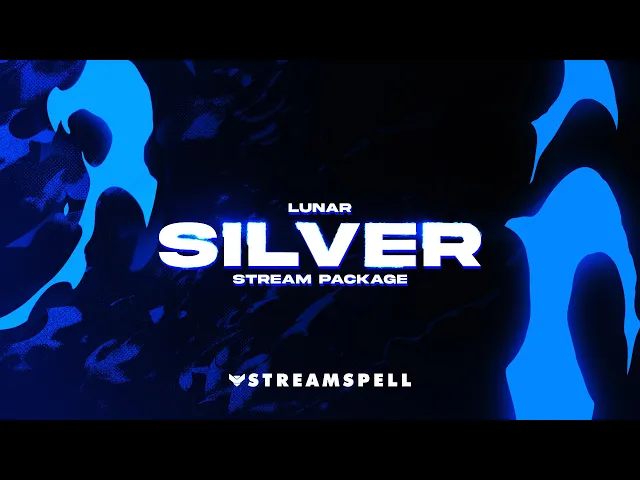
The Lunar Silver Stream Package is a bold blue stream overlay pack made for creators who want a powerful, game-inspired look with dual-format support.
View the Lunar Silver Stream Package here!
This package is a great choice for Pokémon streamers, Nintendo fans, and creators who want a clean but energetic visual identity for Twitch, YouTube, Kick, Facebook Gaming, or Trovo.
Inspired by Lugia-style visuals, Lunar Silver brings blue fiery effects, animated scenes, stream alerts, modular elements, and vertical versions for short-form and mobile-first content. For Twitch Dual Format, it works well because it includes vertical scene versions that can help creators build a cleaner 9:16 layout alongside their regular horizontal stream.
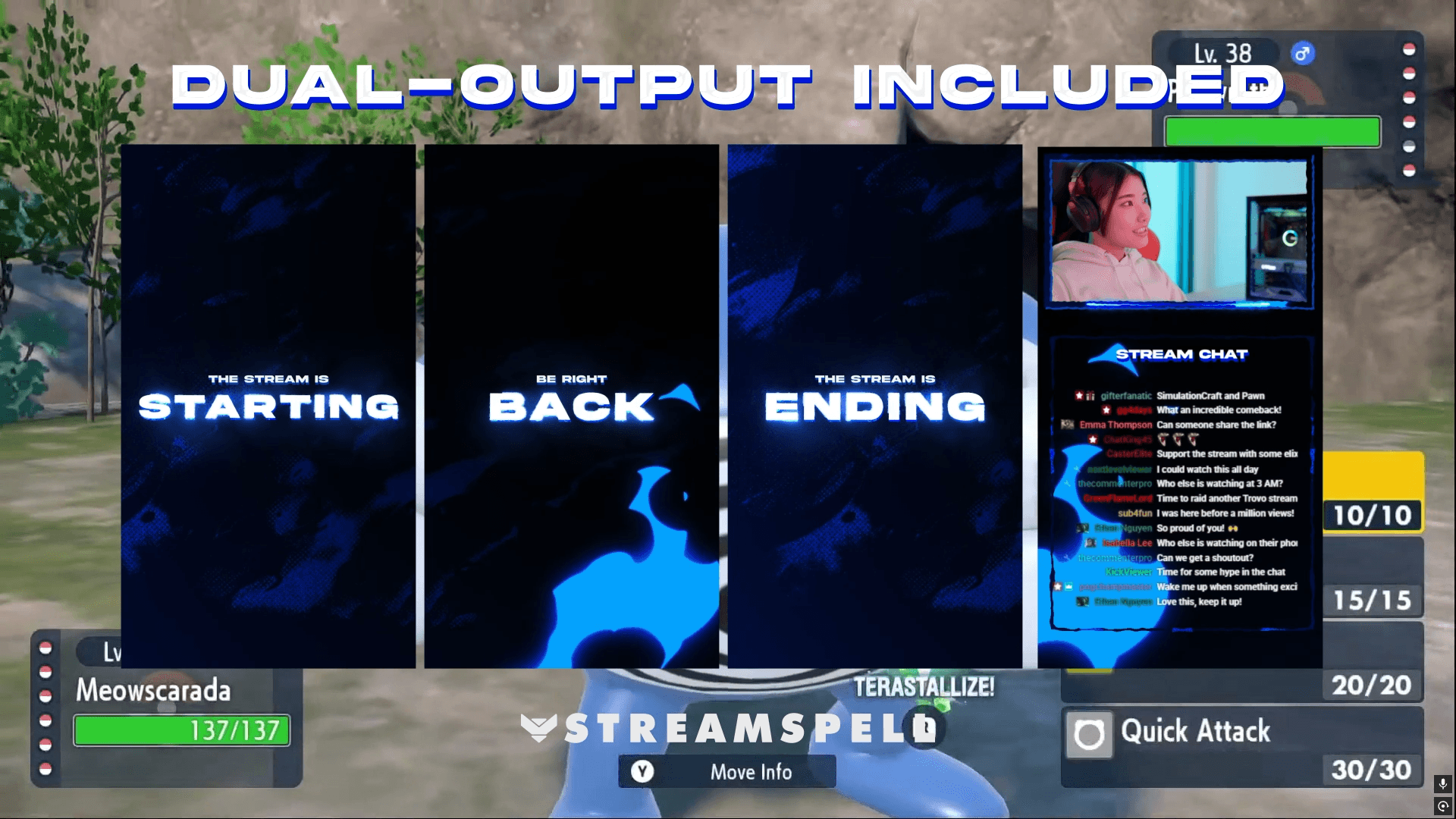
What makes it great for Twitch Dual Format:
• Vertical scene versions for TikTok and Instagram
• Dual-screen support for multistreaming
• Streamlabs Quick Install with Dual-Output compatibility
• Animated scenes for Starting, BRB, Ending, and Chatting
• Stream alerts for Twitch, YouTube, Facebook, Kick, and Trovo
• Animated webcam overlay in 16:9
• Modular chat box, stream label slots, event icons, and social media icons
• Animated stinger transition
• Setup tutorials for faster installation
Lunar Silver is perfect for streamers who want a stronger fantasy-game aesthetic without making the screen feel messy. The blue animated visuals help the stream feel energetic, while the vertical scene options make it easier to prepare content for mobile viewers and Dual Format workflows.
Perfect for:
• Pokémon streamers
• Nintendo-inspired streams
• Fantasy and creature-collector games
• Twitch Dual Format setups
• Multistreaming creators
• Streamers who want a blue animated overlay style
How to Start Streaming in Twitch Dual Format
Twitch’s official guide explains how to start Dual Format streaming in a few main steps. For OBS users, the setup uses the Aitum Vertical Plugin. Twitch also explains that streamers can use Dual Format with other streaming apps, including Meld, Streamrun, Streamlabs, and XSplit.
Here is the simple version.
1. Install the Aitum Vertical Plugin
If you use OBS, start by downloading and installing the Aitum Vertical Plugin.
After installing it, reopen OBS so the plugin appears correctly.
2. Enable Enhanced Broadcasting in OBS
In OBS, go to:
Settings > Stream
Then enable:
Enhanced Broadcasting
This option appears under Multitrack Streaming in the Twitch setup flow. Twitch’s guide also says to select Aitum Vertical as the Additional Canvas in the same window.
3. Set Up Your Vertical Layout
After the plugin is ready, you should see the Aitum Vertical dock inside OBS.
This is where you can build your vertical version of the stream.
You do not need to recreate every scene immediately. Start with the scenes you use most, such as:
• Gameplay
• Just Chatting
• Starting Soon
• BRB
• Ending
Then add your vertical overlays, webcam, alerts, and key stream elements.
4. Link Your Horizontal and Vertical Scenes
Linking your horizontal and vertical scenes helps both versions switch together during your live stream.
This makes your workflow much easier. When you change scenes in your main stream, the vertical scene can follow along, so you do not need to manage two layouts manually every time.
5. Test Your Stream on Mobile
Before doing a full live stream, run a test and watch your stream from a phone.
Check if your webcam is visible, if your alerts fit the vertical frame, and if the most important content is easy to read.
For vertical layouts, small details matter. A clean setup can make your stream feel much more professional for mobile viewers.
Official Twitch Dual Format setup guide!
What If You Do Not Use OBS?
Most Twitch streamers may use OBS with the Aitum Vertical Plugin, but OBS is not the only option.
According to Twitch’s Dual Format guide, creators can also use Dual Format with:
• Streamlabs
• Meld
• Streamrun
• XSplit
If you use OBS, follow the OBS and Aitum Vertical setup. If you use another streaming app, check Twitch’s official guide for the setup instructions that match your software.
Get Your Stream Ready for Dual Format
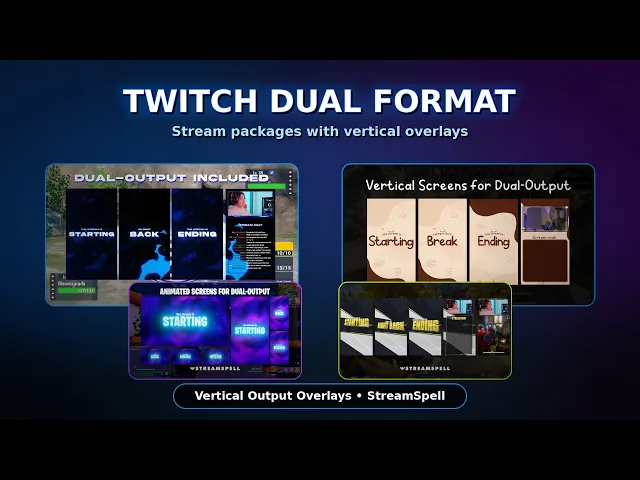
Twitch Dual Format gives streamers a better way to create live content for both desktop and mobile viewers.
Your horizontal stream can still keep the classic 16:9 experience, while your vertical stream can be optimized for phone screens, clips, and shareable moments.
The easiest way to prepare is to use stream packages that already include vertical overlays, horizontal layouts, and assets made for dual-format workflows.
If you want a high-tech FPS setup, Marathon Stream Overlays and Widgets is a strong choice. If you want a bold blue, game-inspired look with vertical scene versions, Lunar Silver Stream Package is a great option.
Explore StreamSpell stream packages with vertical overlays and get your channel ready for Twitch Dual Format.
💙 Extra Resources
Want to explore more stream overlays, widgets, Stream Deck assets and creator tools in one place? Visit the new StreamSpell Store here.
Find more animated stream overlays, animated stream alerts, animated transitions, Stream Deck Icons, emotes and badges, stream widgets, Chat Box, Event List, Goal Bar and custom stream designs:
Thank you for following our blog!
See you in the next post 💙
Level up your stream with practical guides for OBS, Twitch, YouTube and Stream Deck.

AI Stream Deck Profile Generator: Build Profiles Faster
Build Stream Deck profiles faster with Deck Smith, a free AI Stream Deck profile generator by StreamSpell.

40 Webcam Overlay Bundle by StreamSpell
Get 40 stream-ready webcam overlays with animated styles, color customization, and themes like anime, neon, RPG, cute, and more.

5 Strategies for Staying Motivated as a Content Creator
Take care of yourself with these quick tips for staying motivated throughout your content creation journey.
Browse All Articles
Browse Stream Overlays