
VIEW DEALS
Daniel Mayhe
Twitch, OBS Studio, Stream Widgets, Stream Goals

A checklist can turn a loose stream plan into something viewers can follow. The StreamSpell To-do List Widget displays tasks, completed goals, and progress directly in your browser-source overlay.
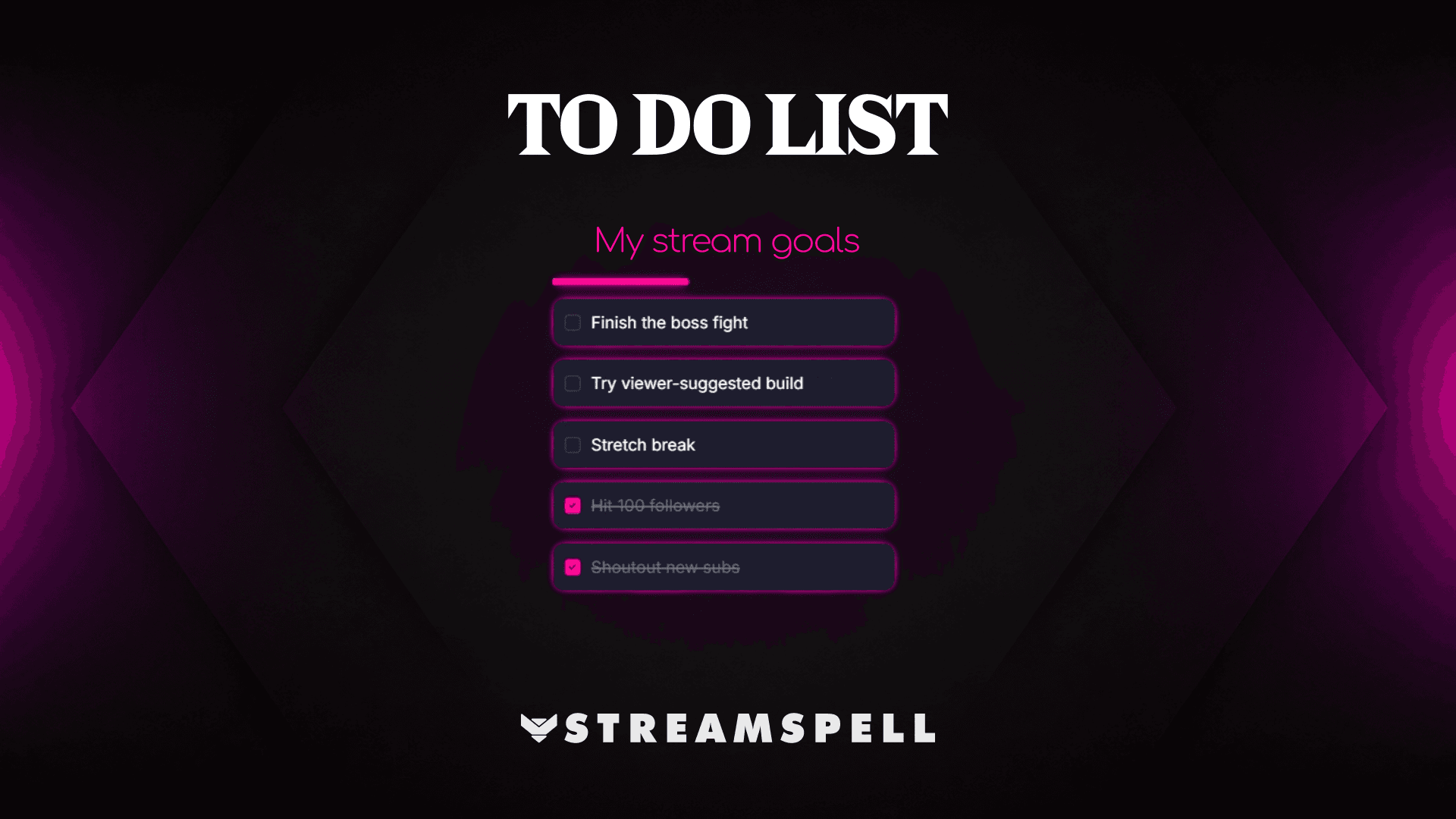
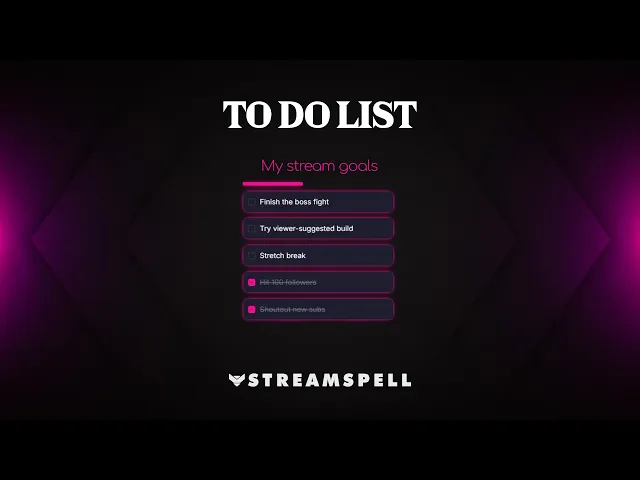
The neon To-do List preview shows open and completed stream goals in the actual overlay. Open the StreamSpell To-do List Widget editor to build your own checklist.
Watch the To-do List Widget display stream goals, completed tasks, and checklist progress in motion.
What Is the To-do List Widget?
The To-do List Widget is a customizable stream checklist. The owner can add, rename, reorder, complete, reopen, and remove tasks in the editor, then place the saved list in OBS Studio through a private browser-source URL.
It works for stream goals, boss attempts, challenge rules, community suggestions, creative milestones, sponsor talking points, or a simple plan for the broadcast.
What the Checklist Can Show
The checklist can track:
A custom title and optional empty state
Between one and 25 visible tasks
Completed and open task states
Progress as a fraction, percentage, bar, or no counter
Completed tasks in place or automatically moved to the bottom
The editor also includes quick actions for clearing completed tasks and restoring the sample list, which makes it easier to prepare a fresh version before the stream starts.
To-do List Customization Options
The main controls include:
Layout: choose checklist, compact, or card presentation.
Progress: show a fraction, percentage, progress bar, or nothing.
Completion style: use strike-through, faded, or checked tasks.
Visibility: show or hide completed tasks.
Order: move completed tasks to the bottom automatically.
Design: adjust accent, card, text, completed, and border colors.
Density: control spacing, corner radius, opacity, and item text between 10 and 32 pixels.
Animation: choose none, fade, or checkbox-pop feedback.
Optional Twitch Task Commands
The default command is !task. When Twitch commands are enabled and the widget owner is connected to Twitch, only the broadcaster or a moderator can use the command.
!task 2 or !task 2 done completes task 2.
!task 2 undo reopens task 2.
!task done all completes every task.
!task reset marks every task as incomplete.
!task add Your task adds a sanitized task up to 140 characters.
Chat-command changes affect the running browser source only. They do not rewrite the saved checklist in the editor, so prepare the permanent task list there.
How to Add the To-do List to OBS Studio
Follow these steps to set it up:
Create a To-do List Widget in the StreamSpell Widgets Hub.
Add and order the tasks you want to show.
Choose the progress, completion, layout, color, and animation settings.
Connect Twitch and enable the command only if moderators should update the live overlay.
Save the widget and copy its browser-source URL.
Add a Browser source in OBS Studio, paste the URL, and size it around the longest task.
Good Checklist Ideas for Streams
Useful checklist ideas include:
Challenge-run objectives and restrictions
Bosses, maps, or achievements to complete
Art, music, or building milestones
Viewer-suggested activities approved before the stream
Event segments and sponsor reminders
Requirements and Limitations
The visual checklist does not require a platform connection. Twitch is required only for live !task commands. Those commands are restricted to moderator or broadcaster badges, and runtime command changes do not persist back to the saved widget.
This is a stream overlay, not a task-management integration. It does not sync with external project tools, automate tasks, or allow unrestricted viewer editing.
Premium Skins and the Widget Pass
StreamSpell releases new premium skins weekly, including themes inspired by different game genres. As the catalog expands, supported widgets can switch to available premium skins. Every premium skin in the current offer is included with the Widget Pass.
Why Use StreamSpell for a Stream Checklist?
The real preview shows the actual task text, completed state, spacing, progress, and layout while you edit. That makes it easy to check the longest line before it reaches OBS.
Create your To-do List Widget in the StreamSpell Widgets Hub.
💙 Extra Resources
Keep building your stream with practical tools, setup guides, and original StreamSpell designs:
Thank you for following our blog!
See you in the next post 💙
Level up your stream with practical guides for OBS, Twitch, YouTube and Stream Deck.

AI Stream Deck Profile Generator: Build Profiles Faster
Build Stream Deck profiles faster with Deck Smith, a free AI Stream Deck profile generator by StreamSpell.

40 Webcam Overlay Bundle by StreamSpell
Get 40 stream-ready webcam overlays with animated styles, color customization, and themes like anime, neon, RPG, cute, and more.

5 Strategies for Staying Motivated as a Content Creator
Take care of yourself with these quick tips for staying motivated throughout your content creation journey.
Browse All Articles
Browse Stream Overlays