VIEW DEALS

Daniel Mayhe
Streamlabs, Reactive Overlays, streaming-guides

Reactive Overlays are one of the easiest ways to make a stream feel alive. Powered by Streamlabs AI, they watch your gameplay and trigger real-time animations for kills, deaths, wins, damage, and more.
⚡ New from StreamSpell: Deck Smith — AI-powered Stream Deck Profile Builder. Type one prompt, get a download-ready profile for any device. Try it free →
When everything works, it feels like magic.
When something breaks, it can ruin your layout.
This guide combines official Streamlabs instructions with real-world fixes we use daily at StreamSpell. Use it as your single reference for Reactive Overlay issues in Streamlabs Desktop.
Quick 5 minute checklist
Before you dive into deeper troubleshooting, walk through this:
Check if your game is supported by Streamlabs AI.
Reactive Overlays only respond in supported titles from the Streamlabs Reactive Overlays library. Here's the list of games officially supported by Streamlabs AI:
Apex Legends
Battlefield
Black Ops 6
Counter-Strike 2
Fortnite
League of Legends
Marvel Rivals
Overwatch 2
PUBG
Rainbow Six Siege
Valorant
War Thunder
Warzone
Confirm the source type and URL.
Add the overlay as a Reactive Source by pasting the full URL exactly as provided.Check that Streamlabs AI is enabled.
In Streamlabs Desktop, open Settings, go to the Streamlabs AI section, and confirm it is turned on.Toggle Streamlabs AI and restart the app; you can do the same to the game you're running.
Turn Streamlabs AI off and back on. If that does not help, close Streamlabs Desktop completely and reopen it. Sometimes restarting the game you're running can also help. These two steps fix a surprising number of random failures.
If your reactive overlay still behaves oddly after this checklist, move to the specific problems below.
Problem 1: Reactive Overlay not showing at all
Symptom: You installed a Reactive Overlay, but nothing appears on your scene.
1. Confirm the source is set up correctly
Source type must be a Reactive Source or a browser-style source in Streamlabs Desktop.
Paste the full overlay URL. No spaces, no edits.
Test that URL in a normal browser such as Google Chrome or Opera. You should see at least a clean canvas with the overlay on its looping animation state.
2. Browser and hardware acceleration issues
If no reactive sources work at all, toggle hardware acceleration in Settings > General. This little step can also fix a number of random issues on recently launched features on any app.
Problem 2: Overlay shows, but never reacts
Symptom: The overlay is visible, but it does not update for kills, deaths, wins, or damage.
1. Confirm game support and normal HUD
Reactive Overlays rely on Streamlabs AI to recognize HUD elements.
Check that your game is on the official supported list.
Use a standard HUD layout. Avoid mods and settings that hide or relocate health bars, kill feeds, or score indicators.
2. Run Streamlabs Desktop as Administrator
Right click your Streamlabs Desktop's icon and click Run as Administrator.
3. Refresh Streamlabs AI
Open Settings in Streamlabs Desktop.
Go to Streamlabs AI.
Turn AI off, wait a few seconds, then turn it on again.
If that fails, close Streamlabs Desktop and reopen it.
This refreshes both the AI process and the Reactive sources.
Problem 3: Counters not resetting between matches
Symptom: Your kill, death, or win counters keep accumulating across several matches. You want to show stats for a specific game only.
By default, Streamlabs AI resets Reactive Overlays when you start a new stream. That is helpful for full-stream stats, but not for per-match numbers.
Use these manual reset methods.
Method 1: Reset Stream Labels and toggle the source
In Streamlabs Desktop, open Settings.
Go to the General tab.
Click Reset Stream Labels.
Return to your Sources list.
Click the eye icon next to your Reactive Overlay source to hide it.
Click the eye icon again to show it.
Your counters should now be reset to zero.
Method 2: Quick Go Live / End Stream reset
Click Go Live in Streamlabs Desktop.
Once the stream is live, click End Stream.
This also resets all Reactive Overlay counters back to zero.
Streamlabs is working on more direct counter reset options inside the app, so this process should become simpler over time.
Problem 4: Reactive Overlays with capture cards and dual PC setups
Symptom: Reactive Overlays work when capturing the game directly, but they do not update when you use a capture card or stream from a second PC.
Streamlabs has confirmed that only certain capture cards fully support Reactive Overlays. The key feature is Multi App support.
1. Check if your capture card supports Multi App
Visit the manufacturer's site and look up your capture card model.
Confirm it supports Multi App or multi-client usage. Some popular devices have dedicated documentation on this point.
Cards without Multi App support can block the AI pipeline from reliably reading your gameplay feed, which breaks Reactive Overlays.
2. Even with Multi App, behavior can vary
If your card claims Multi App support and overlays still do not react:
Confirm the capture shows the full game HUD, not just a cropped region.
Avoid cropping or resizing that cuts off health bars, kill feeds, or match info.
Keep unnecessary filters, scaling and post-processing on the capture source to a minimum.
3. Use official Streamlabs guidance
Streamlabs has a specific article for Reactive Overlays not updating with capture card gameplay. It confirms the Multi App requirement and recommends submitting a ticket if your card supports it but still fails.
Problem 5: Everything worked before, now nothing makes sense
Symptom: Reactive Overlays were fine, now they are inconsistent or completely broken, and you have not changed anything obvious.
Work through this deeper reset.
Step 1: Full AI and app refresh
Open Settings in Streamlabs Desktop.
Go to Streamlabs AI and turn it off.
Wait a few seconds, then turn it on again.
Close Streamlabs Desktop completely, including any background processes.
Reopen Streamlabs Desktop and load your main scene.
Step 2: Re-add the Reactive Overlay source
If the issue persists:
Remove the affected Reactive Overlay source from the scene.
Add a new Reactive Source.
Paste the original overlay URL again.
This avoids odd cases where a single browser source configuration has silently broken.
Step 3: Check for known issues
Streamlabs maintains a Known Issues section that lists current problems and their status, including Reactive Overlay related entries.
If you see an open issue that matches your problem, follow their recommended steps or workarounds.
Best practices for stable Reactive Overlays
These habits reduce the chance of problems long term.
1. Keep the HUD clean and consistent
Streamlabs AI is trained to read standard HUD layouts. Extreme custom resolutions, HUD scaling, or heavy mods can make detection unreliable.
2. Separate gameplay and chatting scenes
Keep Reactive Overlays in your main gameplay scene and avoid replicating them across many scenes with small variations. Cleaner scene structure leads to fewer sync issues and easier debugging.
3. Group Reactive Overlays visually
Place kill counters, win trackers, HP widgets, and other AI-driven elements near each other. If one freezes, you will spot the problem immediately.
Recommended Reactive Overlay packages
Once your setup is solid, you want overlays that really show what Streamlabs AI can do.
BF6 HUD Stream Package
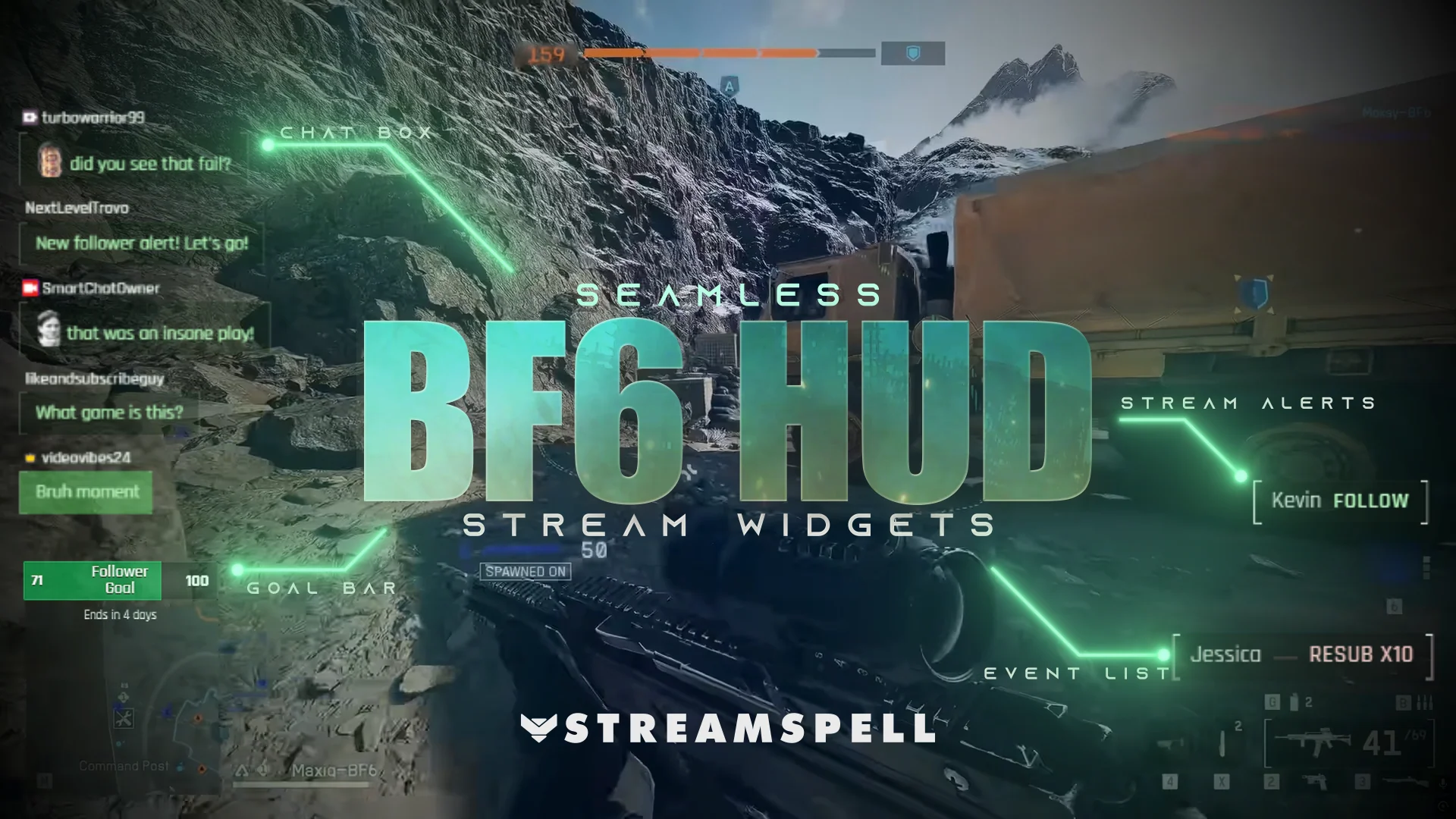
The BF6 HUD Stream Package pack delivers a Battlefield-inspired UI that reacts to kills, deaths, damage and match flow in real time. These reactive overlays, together with a set of stream widgets (such as chat box, event list and goal bars) and webcam overlay, fit seamlessly with Battlefield 6's ingame UI. It is built from the ground up for Streamlabs Reactive Overlays with layouts that keep HUD elements readable for AI.
FPS HUD Stream Package
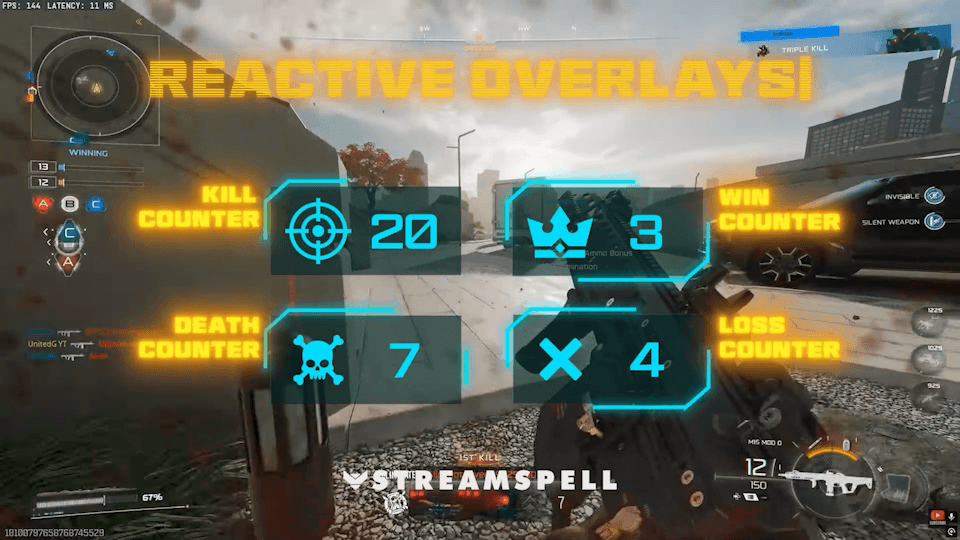
The FPS HUD Stream Package was specially made for Call of Duty: Black Ops 7 fans. It includes a full set of stream widgets along with reactive overlays that counts kills, deaths, wins and losses. Matching seamlessly with COD: BO7's UI, this is the best option for streamers looking to engage their audience with the power of Streamlabs AI.
Frostin Biëber – AI-powered stream pet
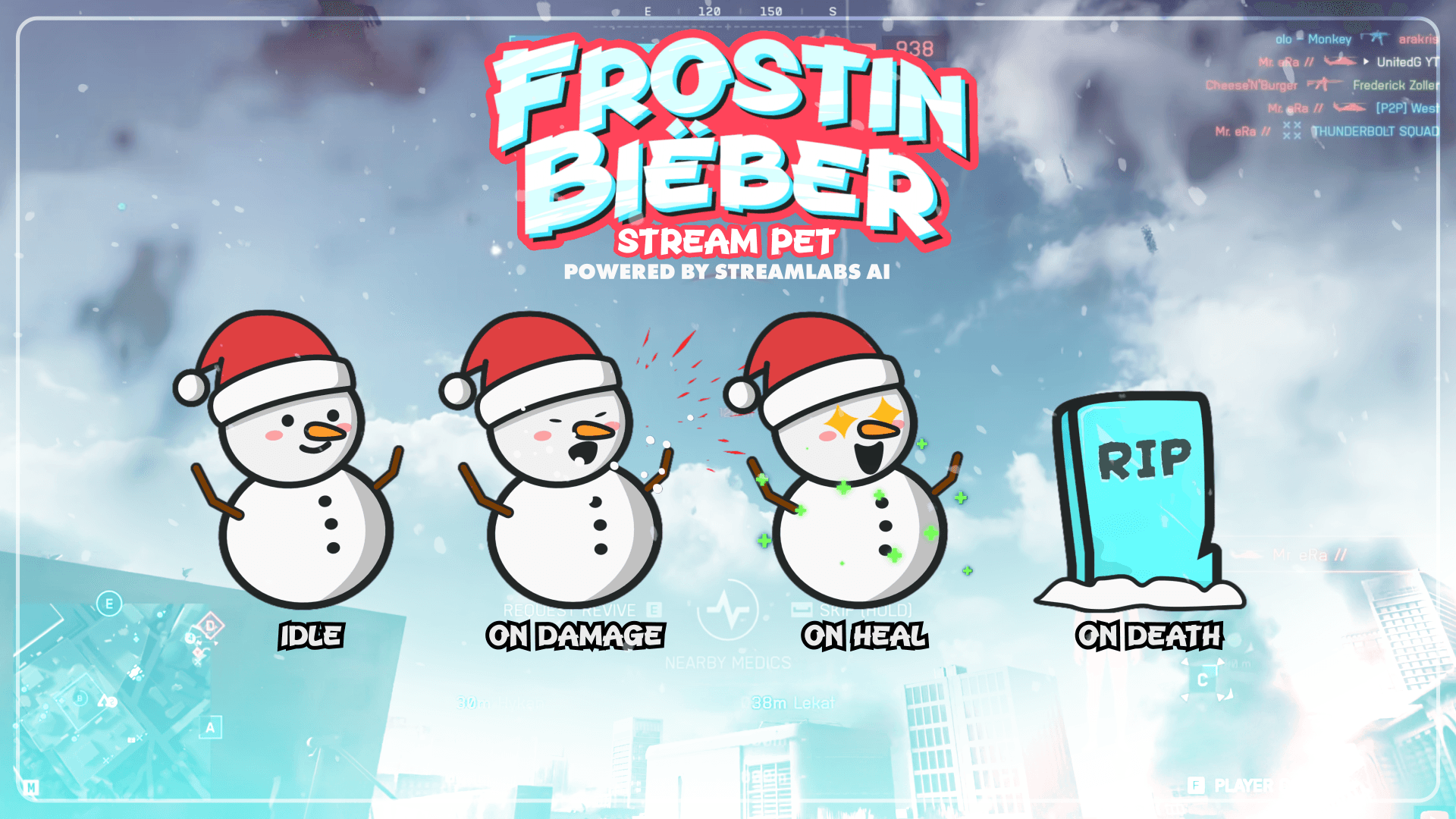
Frostin Biëber is the very first Streamlabs AI-powered stream pet. This snowman reacts to gameplay events such as damage, deaths and respawns, turning your in-game performance into a character your viewers can follow and root for.
Reactive Overlays by StreamSpell collection
For a broader selection of styles and genres, browse the Reactive Overlays by StreamSpell collection. Every pack is designed with Streamlabs AI compatibility in mind so you can drop them into your layout with minimal tweaking.
When to contact Streamlabs support
Use this guide to rule out common issues first. If Reactive Overlays still do not behave correctly after:
Verifying game support
Checking your capture setup
Resetting counters
Testing without a capture card
Toggling Streamlabs AI and restarting Streamlabs Desktop
then it is time to escalate.
1. Open a ticket with Streamlabs
Before you submit a ticket:
Generate a diagnostic report in Streamlabs Desktop.
Note your operating system, GPU, capture card model (if you have one) and game.
List which Reactive Overlays you are using and how they fail.
Attach screenshots or short clips that show the HUD clearly and the overlay staying static or malfunctioning.
2. Join the Streamlabs Discord
If you prefer real-time help and want to see how other creators solved similar issues, join the official Streamlabs Discord and ask in the support channels:
Join the community: discord.gg/stream
You will find staff, partners and other streamers who work with Reactive Overlays daily and can help you cross-check your setup.
💙Extra Resources
Find more animated stream overlays, animated stream alerts, animated transitions, Stream Deck Icons, emotes and badges, stream widgets (Chat Box, Event List, Goal Bar), and custom stream designs:
Thank you for following our blog!
See you in the next post 💙
🎮 Build Your Stream Deck Profile with AI
StreamSpell also just launched Deck Smith — an AI-powered Stream Deck Profile Builder. Just type a prompt and get a complete, download-ready Stream Deck profile adapted for any device.
Level up your stream with practical guides for OBS, Twitch, YouTube and Stream Deck.

AI Stream Deck Profile Generator: Build Profiles Faster
Build Stream Deck profiles faster with Deck Smith, a free AI Stream Deck profile generator by StreamSpell.

40 Webcam Overlay Bundle by StreamSpell
Get 40 stream-ready webcam overlays with animated styles, color customization, and themes like anime, neon, RPG, cute, and more.

5 Strategies for Staying Motivated as a Content Creator
Take care of yourself with these quick tips for staying motivated throughout your content creation journey.
Browse All Articles
Browse Stream Overlays