
VIEW DEALS
Daniel Mayhe
Best Stream Overlays, Stream Deck, Stream Widgets, Free Stream Overlays, Reactive Overlays

The Best Stream Overlays and Widgets for Marathon
⚡ New from StreamSpell: Deck Smith, an AI-powered Stream Deck Profile Builder. Type one prompt, get a download-ready profile for any device. Try it free.
Marathon launches in March 2026, a PvPvE extraction FPS built around risk, survival, and high-stakes combat inside a dark sci-fi universe.
📅 Release date: March 2026
🔥 Add it to your Steam wishlist to stay updated.
Set on the abandoned colony of Tau Ceti IV, Marathon blends tense exploration, limited resources, and fast PvP encounters. Each run rewards preparation, smart positioning, and clutch decision-making, exactly the kind of gameplay that thrives on live streams.
Marathon’s visual identity is sharp, high contrast, and futuristic. If your stream layout is noisy or mismatched, it fights the game. If it’s too plain, it looks generic. The goal is a layout that feels like Marathon UI, stays readable in motion, and helps you run the show fast.
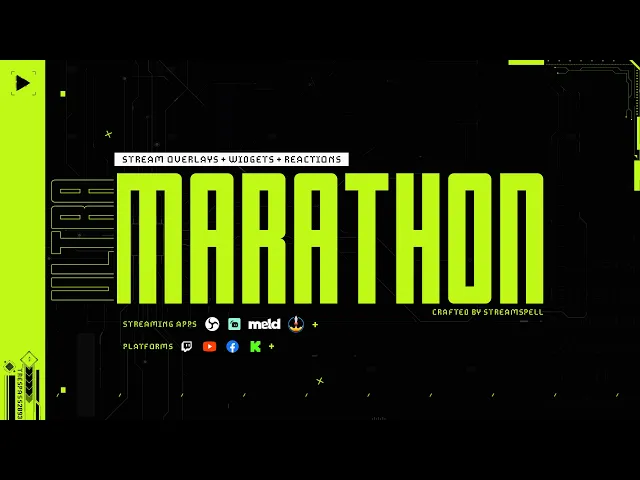
This guide covers the best overlay and widget setup for Marathon, plus the cleanest way to get a cohesive look using StreamSpell’s ULTRAMARATHON stream package and matching Stream Deck assets.
Get the complete Marathon look: ULTRAMARATHON: Marathon Stream Overlays and Widgets
Only need Stream Deck assets: Marathon Stream Deck Profile for OBS and Icons
Need help installing or customizing: StreamSpell Support
What Makes a Great Marathon Stream Overlay
Marathon is built around tension and clarity, so your stream design should prioritize:
Readability at a glance on mobile and in compressed streams
Clean margins so gameplay stays unobstructed
High-contrast UI panels that feel in-universe
Minimal animation clutter during fights
A consistent scene system for Starting, BRB, Ending, and Live gameplay
Fast control through Stream Deck actions and icons
If you want your stream to feel premium, the whole system needs to match, not just one screen.
The Best All-in-One Choice for Marathon: ULTRAMARATHON
If you want one install, one visual language, and a setup that looks like it was designed for Marathon from day one of the 2026 release, use a purpose-built pack.
ULTRAMARATHON: Marathon Stream Overlays and Widgets gives you a cohesive Marathon aesthetic with overlays and widgets designed to work together.
Why this is the smartest default
Cohesive look across scenes, overlays, and widgets
Faster go-live with fewer mismatches and less tweaking
Better viewer experience because the layout stays readable and consistent
Content-ready for launch, events, and updates
If you want a Marathon overlay that looks instantly intentional, start with ULTRAMARATHON.
The Best Widgets for Marathon Streams
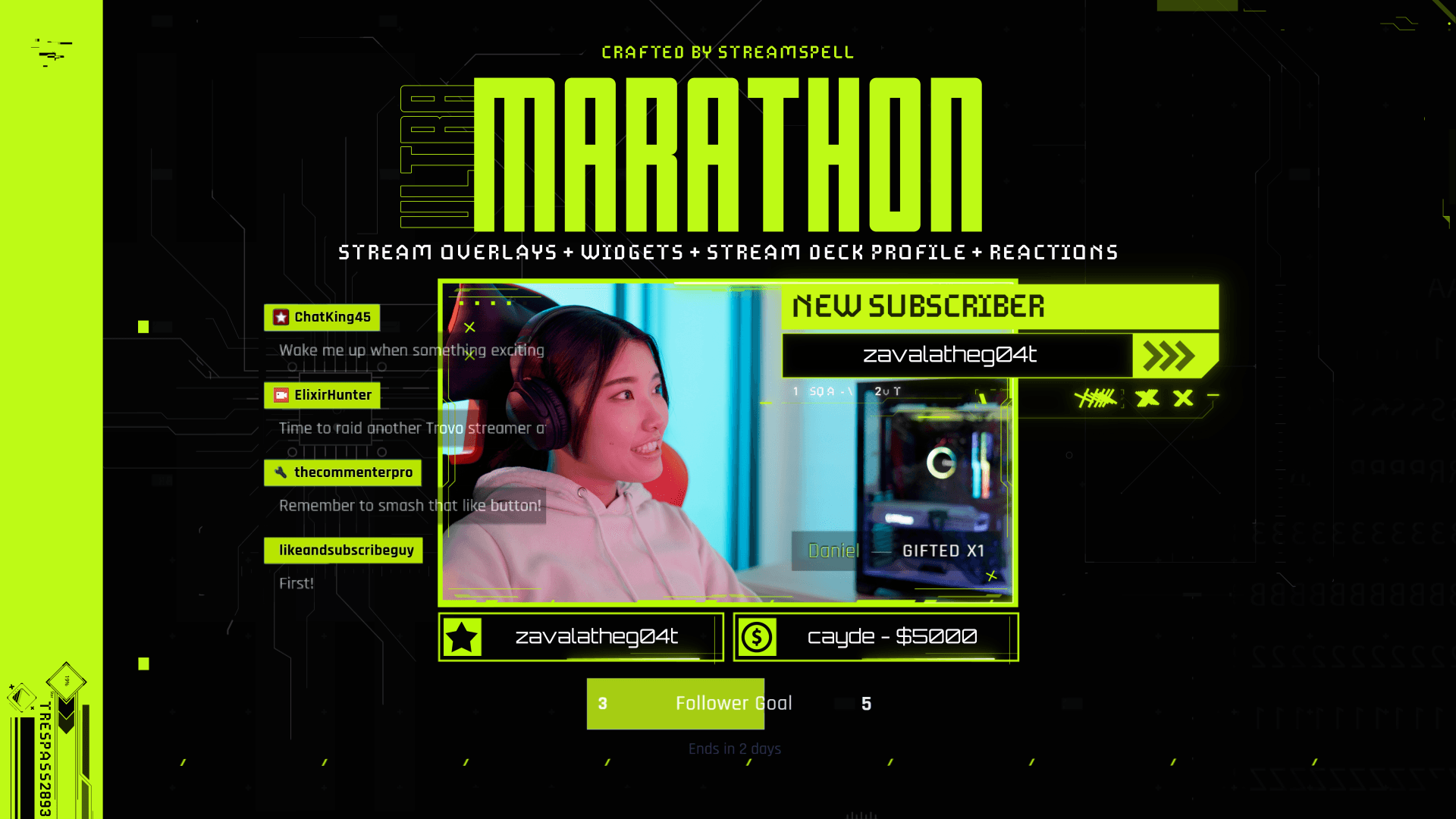
Marathon streams look best when your widgets feel like part of the game UI, not random add-ons. The rule is simple: clean, compact, and always readable, even during fights.
The ULTRAMARATHON stream package includes a full widget bundle, built to match the Marathon aesthetic:
Alert Box (works across Twitch, YouTube, Facebook Gaming, Kick, and Trovo)
Chat Box widget
Event List
Goal Bars
If you want the complete bundle with overlays and widgets in one cohesive theme, grab it here!
1) Alerts that stay out of your crosshair zone
Alerts should reward events without stealing attention. For Marathon, the best setup is:
Small footprint
High contrast for readability
Positioned away from the center gameplay HUD
Consistent motion style that does not overwhelm the scene
ULTRAMARATHON’s Alert Box is designed to sit cleanly in your layout while staying readable on every supported platform.
2) Chat box that stays readable in motion
Marathon streams move fast, and chat can get dense. A good chat box widget should:
Use clear spacing and readable text weight
Avoid heavy backgrounds that block gameplay
Maintain contrast in dark scenes
Fit naturally into your overlay grid
With ULTRAMARATHON, the chat box is styled to feel like a UI panel, so it blends with the rest of your Marathon layout.
3) Event list that creates momentum
An event list quietly adds social proof and keeps the stream feeling active. For Marathon, keep it:
Compact
Aligned with your other HUD modules
Focused on the events that matter most
Consistent with your typography and spacing
This is one of the easiest ways to make your stream feel “alive” without adding clutter.
4) Goal bars that look like Marathon UI
Goal bars can look cheap fast if they are too bright or too chunky. The best Marathon-style goal bars:
Use clean shapes and controlled accents
Stay readable at small sizes
Sit outside the crosshair zone
Keep the same visual language as your other widgets
ULTRAMARATHON includes goal bars that match the theme, so you can run sub goals, follower goals, or tip goals without breaking the look.
The Best Stream Deck Setup for Marathon
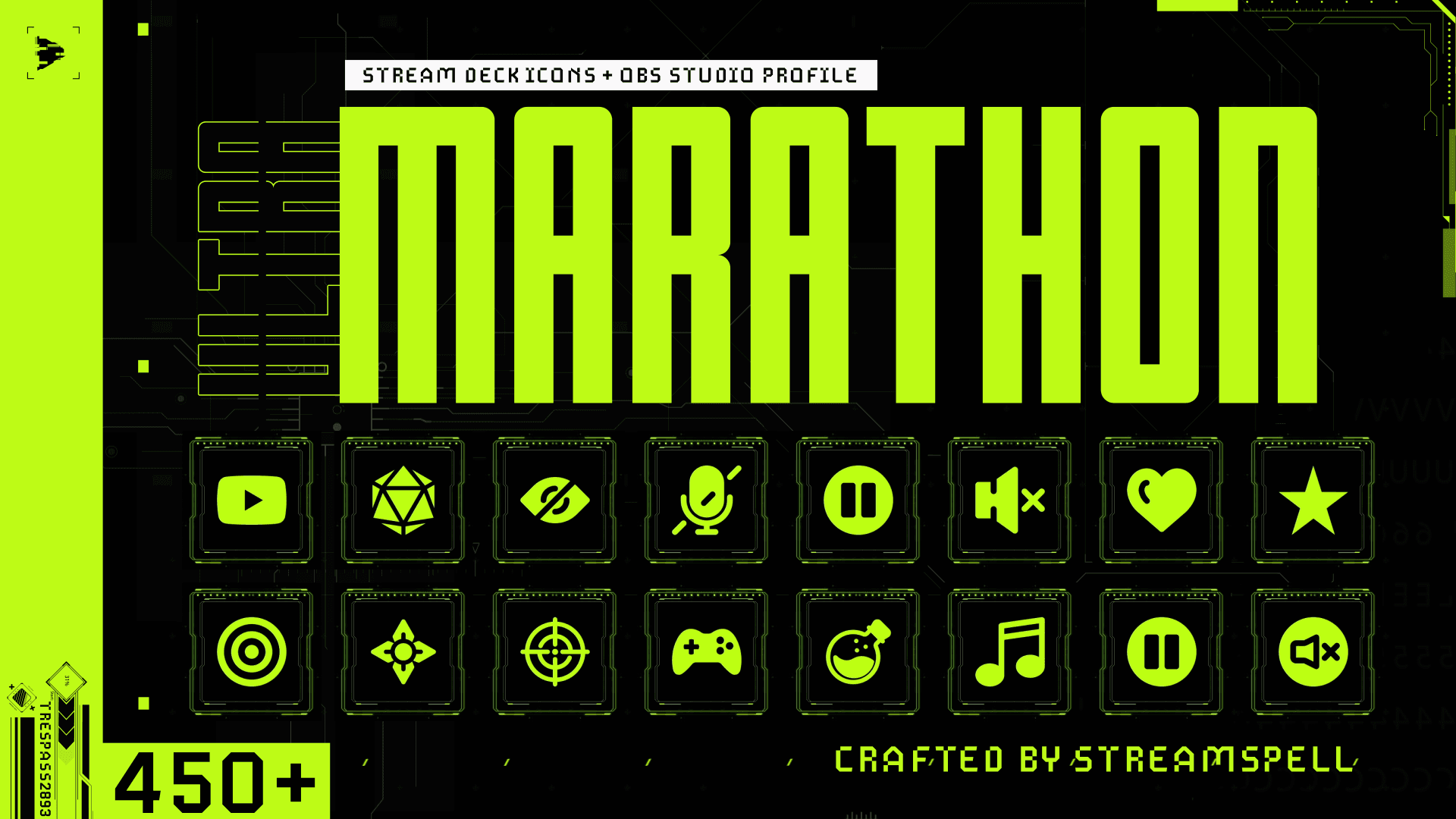
Marathon is the kind of game where you don’t want to alt-tab mid-run. Your Stream Deck should be your control center.
If ULTRAMARATHON is your visual command center, the Stream Deck side is your operational cockpit: 500+ animated Marathon icons plus an import-ready OBS Studio profile, built for speed, clarity, and a cohesive green sci-fi interface.
A Marathon-ready Stream Deck setup for 2026 should include:
Scene switching
Mute toggles and audio controls
Quick “moment” buttons for clips and markers
Matching icons so your control layer looks cohesive on camera
An OBS-focused layout that’s fast to learn
Support for the following Stream Deck devices: Neo, Mini, MK, SD+, XL and Galleon 100 SD.
Stream Deck assets only option
If you already have overlays and only want Marathon control, icons, and OBS actions, grab the dedicated pack:
Marathon Stream Deck Profile for OBS and Icons
If you hit any friction with install, mapping, or layout, use this article and learn how to install Stream Deck Icons, profiles and screensavers!
Reactive Overlays for Marathon (Streamlabs Users)
If you stream games supported by Streamlabs AI, reactive overlays are one of the easiest ways to make your layout feel alive without adding clutter. Instead of relying on flashy animations, you get clean, data-driven HUD elements that update automatically as you play.
Reactive Overlays do not natively support Marathon yet. Streamlabs needs to add official game support first. For now, ULTRAMARATHON Reactive Overlays work with supported titles and still match the Marathon aesthetic.
Reactive Overlays are currently supported in:
Apex Legends
Battlefield
Black Ops 6
Counter-Strike 2
Fortnite
League of Legends
Marvel Rivals
Overwatch 2
PUBG
Rainbow Six Siege
Valorant
War Thunder
Warzone
And more titles coming soon
In ULTRAMARATHON, Streamlabs users can run reactive overlays that support:
Kill counter
Death counter
KD ratio calculator
Why reactive overlays matter for Marathon
Marathon is all about momentum and high-stakes decisions. Reactive HUD stats give your viewers context instantly:
They see your performance trend without you explaining it
It creates mini “goals” inside the run
It boosts engagement because people track your pace in real time
Best placement for Kills, Deaths, and KD
Keep these elements readable but out of your way:
Place them near your webcam frame or upper corner modules
Avoid the center HUD and any region where Marathon UI elements sit
Use consistent sizing so the widget feels like part of the overlay system
Pro tip for clean KD display
KD can break visually when deaths are zero. Make sure your KD overlay is configured to avoid weird outputs like Infinity or NaN, so the on-screen UI stays professional.
If you need help installing or tuning reactive overlays, use our Ultimate Reactive Overlays Troubleshooting Guide.
Recommended setup paths
Path A: you want the full Marathon look
Add the Stream Deck assets so your controls match your visuals
Go live with a cohesive Marathon identity
Path B: you already have overlays and want Marathon controls
Install the Stream Deck assets only pack
Switch your Stream Deck icons and OBS actions to Marathon
Keep your existing overlay system
Path C: you want a Marathon season refresh
Run ULTRAMARATHON for Marathon streams only
Keep your usual theme for other games
Swap Stream Deck profiles to switch brands instantly
Other sci-fi packages that fit Marathon’s aesthetic
If ULTRAMARATHON isn’t the one for you, or if you want to test the Marathon vibe with a lighter pack first, here are 3 other sci-fi stream packages from our store that fit the same energy.
Venom Stream Package
Why it fits Marathon: cyberpunk look with smoke, glitch, and aggressive visual effects that complement hostile sci-fi environments. Fast, punchy alerts match sudden PvP encounters.
Animated and static versions included
Animated alerts and stinger transition
Venom Stream Package on StreamSpell Store
Cyberpunk V.77 Stream Package
Why it fits Marathon: a neon-heavy cyberpunk overlay built for sci-fi FPS streams. Futuristic neon and glitch effects reflect advanced tech themes, and extra Just Chatting screens support between-run commentary.
Animated and non-animated versions
Multiple Just Chatting layouts
Cyberpunk V.77 Stream Package on StreamSpell Store
Signal Break Stream Package
Why it fits Marathon: a modern tactical overlay built for competitive FPS streams. Military aesthetics and HUD visuals fit extraction gameplay, and the widgets support live engagement during intense matches.
Animated Screens, Just Chatting, and Offline
Widgets included: Chat Box, Event List, Goal Bar
Dual Output compatible
Signal Break Stream Package on StreamSpell Store
How to add widgets and overlays to OBS cleanly
The most reliable approach is a browser source workflow. It’s fast, consistent, and works across most streaming setups.
How to customize the colors of your Marathon stream overlays
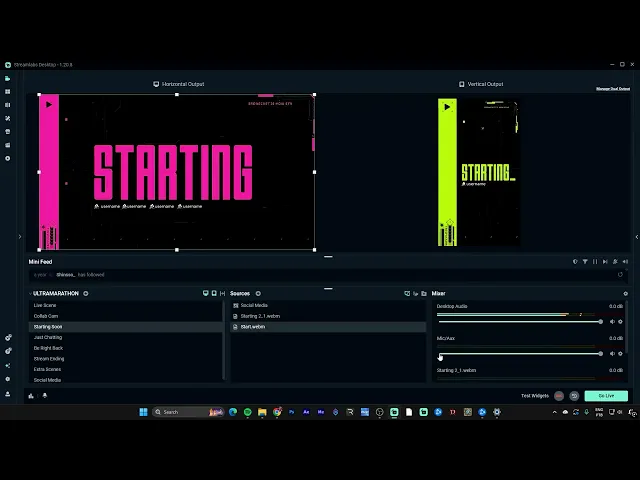
Watch the video below to learn how to use Color Correction filters on any streaming app in order to customize the look of any stream package by StreamSpell.
Make your Marathon stream look premium
Run this checklist before you go live:
One aesthetic across scenes, overlays, widgets, and Stream Deck
Clean margins around gameplay, no HUD collisions
Readable text at mobile sizes
Consistent color system for backgrounds, accents, highlights, and text
Fast scene switching with a Stream Deck layout you can operate blind
Ready to upgrade the whole look in one move? Start with ULTRAMARATHON: Marathon Stream Overlays and Widgets.
If you only want the OBS profile, icons, and Stream Deck visuals, grab Marathon Stream Deck Profile for OBS and Icons.
Need help, fixes, or install guidance? Go here: StreamSpell Support.
Level up your stream with practical guides for OBS, Twitch, YouTube and Stream Deck.

AI Stream Deck Profile Generator: Build Profiles Faster
Build Stream Deck profiles faster with Deck Smith, a free AI Stream Deck profile generator by StreamSpell.

40 Webcam Overlay Bundle by StreamSpell
Get 40 stream-ready webcam overlays with animated styles, color customization, and themes like anime, neon, RPG, cute, and more.

5 Strategies for Staying Motivated as a Content Creator
Take care of yourself with these quick tips for staying motivated throughout your content creation journey.
Browse All Articles
Browse Stream Overlays