
VIEW DEALS
Daniel Mayhe
OBS Studio, Streamlabs, Stream Widgets, Timer

A visible timer tells viewers exactly when the next moment begins. The StreamSpell Timer Widget creates a customizable countdown or count-up for starting screens, breaks, challenges, timed segments, and other browser-source scenes.
What Is the Timer Widget?
The Timer Widget is a browser-source overlay that displays a title and an hours, minutes, and seconds clock. You configure the timer in the StreamSpell Widgets Hub, copy its private URL, and add that URL to OBS Studio or another streaming app that accepts browser sources.
It does not require Twitch, YouTube, chat commands, or an event provider. The timer begins when the browser source renders, which makes it useful for scenes that need a clear visual clock without a live-platform connection.
Countdown and Count-Up Modes
Countdown mode starts at the duration you choose and moves toward zero. Use it for a Starting Soon scene, an intermission, a timed challenge, or the final minutes before an announcement.
Count-up mode starts at zero and advances until it reaches the configured total. It works well for speedrun-style segments, timed creative sessions, workout streams, or any challenge where elapsed progress should remain visible.
The editor accepts whole hours, minutes, and seconds: up to 23 hours, 59 minutes, and 59 seconds. Reloading the browser source restarts the timer, so test scene changes and source refreshes before using it in a live timed event.
Timer Customization Options
The main controls include:
Title: write a short label such as Starting Soon, Break Ends In, or Challenge Time.
Direction: choose countdown or count-up.
Duration: set hours, minutes, and seconds.
Labels: show or hide the Hours, Minutes, and Seconds text.
Timer box: adjust its color, opacity, border color, border width, padding, and spacing.
Typography: customize the number and label colors, sizes, font, and weight.
Effects: add shadow or glow and optionally show a completion flicker when a countdown reaches zero.
How to Add the Timer Widget to OBS Studio
Follow these steps to set it up:
Open the StreamSpell Widgets Hub and create a Timer Widget.
Enter the title, select countdown or count-up, and choose the duration.
Customize the labels, colors, typography, border, spacing, and effects.
Save the widget and select Copy URL.
In OBS Studio, add a new Browser source to the target scene.
Paste the private URL, size the source around the clock, and confirm.
Reload the source once during testing so you know exactly how the timer restarts.
Using the Timer in Streamlabs or StreamElements
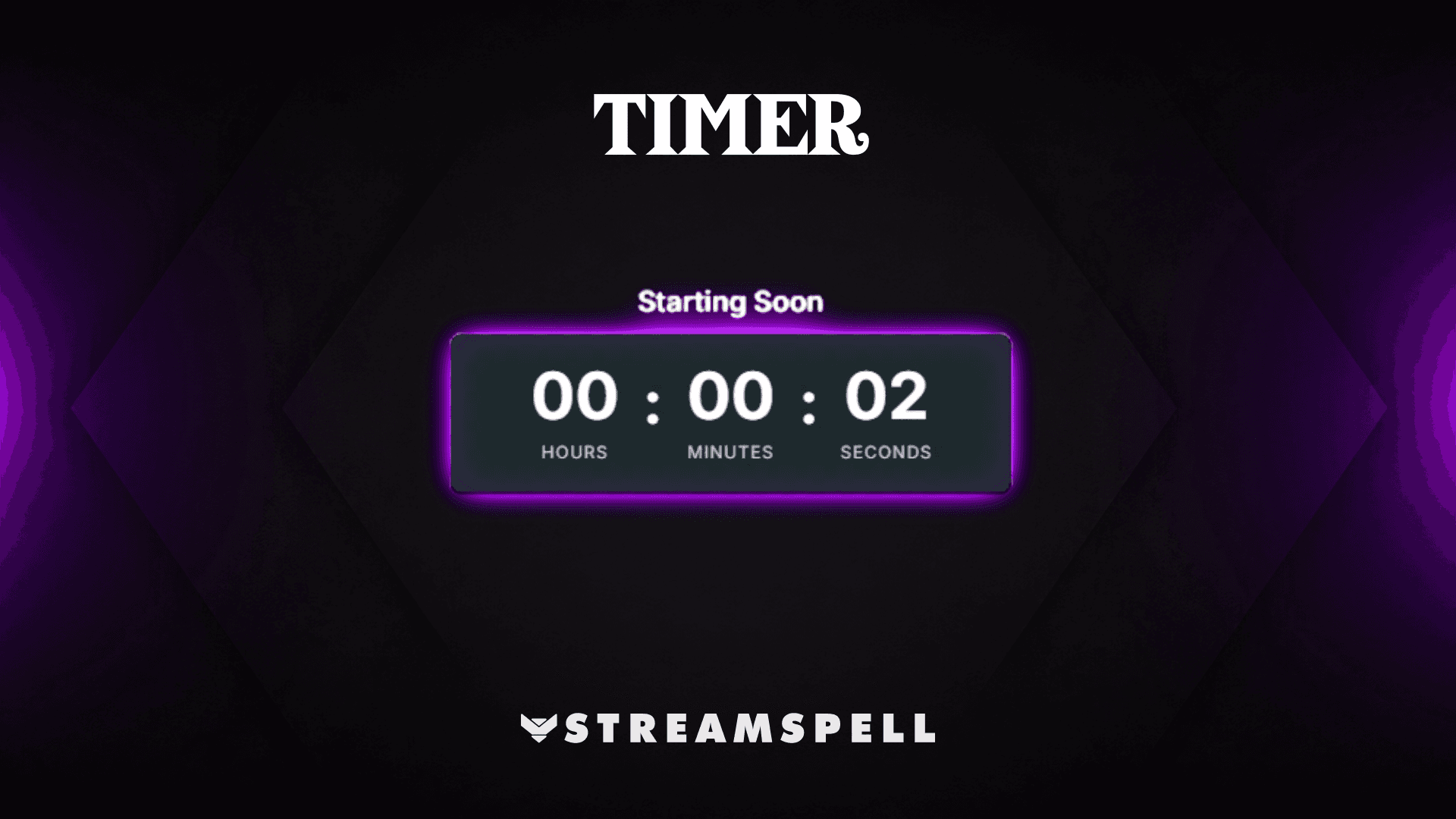
The widget uses a browser-source URL. Add it through the browser or web-source option in your streaming tool, paste the saved URL, and give the source enough space for the title, numbers, and optional labels.
Best Uses for a Stream Timer
Useful ways to use it include:
Starting Soon and intermission scenes
Timed gameplay, art, music, or fitness challenges
Community vote or giveaway entry windows
Speedrun-inspired segments
Event, reveal, or premiere countdowns
Important Timer Limitations
This is a configurable browser-source clock, not an OBS-native timer, external scheduler, synchronized stopwatch, or alert automation. It does not start from a platform event. A browser-source reload restarts the timer, and count-up mode stops when it reaches the total you configured.
For an important event, run the exact scene transition and refresh workflow you plan to use before going live. Keep the browser-source URL private.
Premium Skins and the Widget Pass
StreamSpell releases new premium skins weekly, including themes inspired by different game genres. Availability varies by widget as the skin catalog expands. When a premium skin is available for this widget, it can be purchased separately or accessed through the Widget Pass.
Why Use StreamSpell for a Stream Timer?
The live editor keeps the real clock visible while you adjust the duration and design. You can review number spacing, label size, contrast, border, and completion effects before the timer reaches your broadcasting software.
Create your Timer Widget in the StreamSpell Widgets Hub.
💙 Extra Resources
Keep building your stream with practical tools, setup guides, and original StreamSpell designs:
Thank you for following our blog!
See you in the next post 💙
Level up your stream with practical guides for OBS, Twitch, YouTube and Stream Deck.

AI Stream Deck Profile Generator: Build Profiles Faster
Build Stream Deck profiles faster with Deck Smith, a free AI Stream Deck profile generator by StreamSpell.

40 Webcam Overlay Bundle by StreamSpell
Get 40 stream-ready webcam overlays with animated styles, color customization, and themes like anime, neon, RPG, cute, and more.

5 Strategies for Staying Motivated as a Content Creator
Take care of yourself with these quick tips for staying motivated throughout your content creation journey.
Browse All Articles
Browse Stream Overlays