VIEW DEALS

Daniel Mayhe
Twitch, OBS Studio, Stream Widgets

When a decision should feel like part of the show, a visible wheel is more entertaining than a random number. The StreamSpell Spin Wheel Widget lets you build a browser-source wheel with your own segments, style, spin timing, and optional Twitch chat command.
What Is the Spin Wheel Widget?
The Spin Wheel Widget is an interactive stream overlay for random picks. You add the choices, customize the wheel, save it, and place it in OBS Studio as a browser source. A streamer or approved chat moderator can trigger the spin when Twitch command control is enabled.
It works for rewards, challenges, punishments, game choices, viewer decisions, and any moment where the suspense of the selection matters as much as the result.
What Can You Put on the Wheel?
Each segment is your own text, so the same widget can support many formats:
Game or map choices
Viewer rewards
Challenge-run rules
Funny punishments
Giveaway outcomes
Character, loadout, or build selections
Community prompts for a Just Chatting stream
Short labels work best. Viewers should be able to read each segment while the wheel is still, and understand the result as soon as it stops.
Spin Wheel Customization Options
The main controls include:
Segments: create a custom list of prizes, challenges, rewards, or choices.
Title: show or hide the wheel title and write your own label.
Twitch command: enable or disable chat control and choose the command viewers will see.
Spin duration: set the animation between 1.5 and 8 seconds.
Size: scale the wheel for a full-screen moment or a smaller corner placement.
Colors: customize alternating segment colors, text, and the pointer.
Finish: adjust border size, opacity, and glow.
Testing: trigger a test spin directly in the editor.
The editor preview below keeps the complete wheel visible while you adjust its segments, title, command, timing, and design.
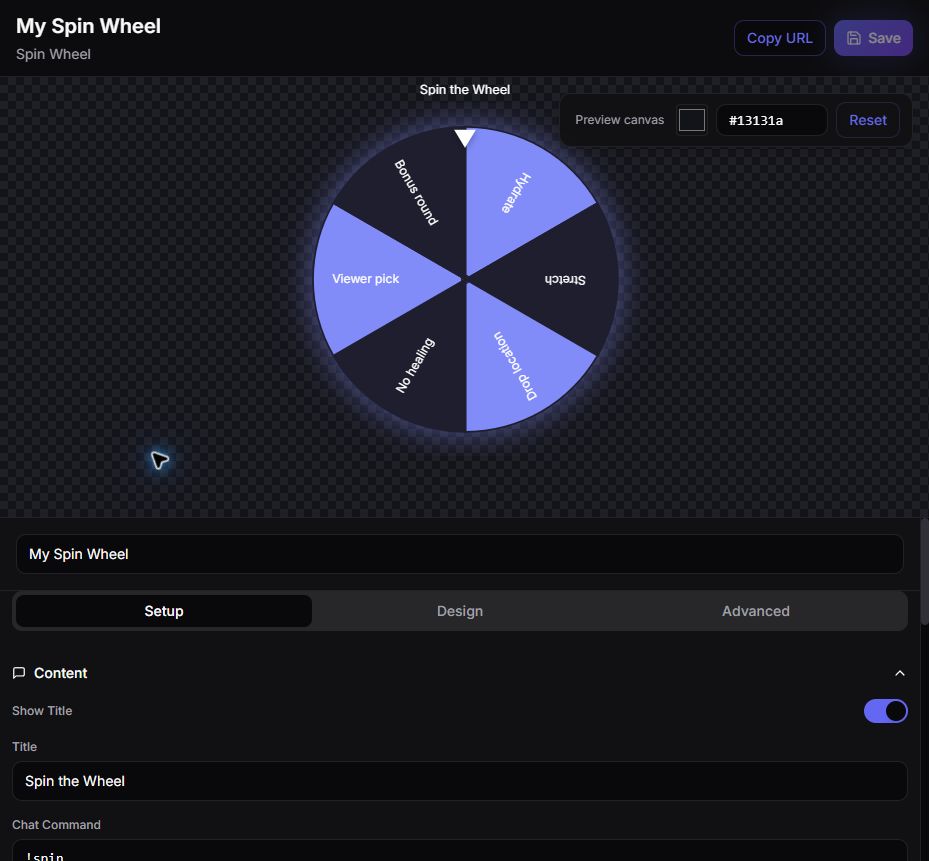
The StreamSpell Spin Wheel editor showing a six-segment wheel and its setup controls. Create a Spin Wheel Widget in the StreamSpell Widgets Hub.
How Twitch Chat Control Works
The default command is !spin, and you can change it in the widget settings. When chat commands are enabled and Twitch is connected, only the broadcaster or a moderator can trigger the wheel. That protects the scene from repeated spins by regular viewers while still letting trusted moderators run the interaction.
If you want full manual control, disable the chat command and use the editor's test or control flow when preparing the moment.
How to Add the Spin Wheel to OBS Studio
Follow these steps to set it up:
Open the StreamSpell Widgets Hub.
Create or open a Spin Wheel Widget.
Add your segment labels, choose the title, and customize the size, duration, colors, pointer, border, and glow.
If you want chat control, connect Twitch, enable the command, and choose the command text.
Run a test spin and confirm every segment remains readable.
Save the widget and select Copy URL.
In OBS Studio, add a Browser source, paste the private URL, and size it for the scene.
Run one more test while viewing OBS to confirm the full wheel and pointer stay inside the browser-source frame.
Using the Spin Wheel in Streamlabs or StreamElements
Add the widget through a browser or web source and paste the same saved URL. Make the source large enough for the wheel, title, pointer, and glow; cropping the browser source too tightly can cut off the result.
How to Make a Better Stream Wheel
Use these practical guidelines:
Keep outcomes comparable: a wheel feels fairer when the segments have a similar level of impact.
Explain the rules before spinning: tell viewers whether a result can repeat, be rerolled, or be removed.
Use readable labels: move long explanations into chat or a scene note and keep the segment text short.
Test the slowest duration: make sure the suspense does not interrupt the pace of your broadcast.
Keep a safe list: every segment should be something you are genuinely prepared to do or award.
Spin Wheel vs. Giveaway Picker
A spin wheel is best when the result options are visible and the random selection is part of the entertainment. A giveaway picker is better when the main task is choosing an eligible participant from an entry pool. You can also combine them: select a participant first, then use the wheel to reveal a reward or challenge.
Requirements and Privacy
The wheel itself is a browser-source widget. Twitch connection is required when you want the broadcaster or moderators to trigger it through chat. Keep the browser-source URL private, verify the command before going live, and never place a prize on the wheel that you cannot deliver.
Premium Skins and the Widget Pass
StreamSpell releases new premium skins weekly, including themes inspired by different game genres. Availability varies by widget as the skin catalog expands. When a premium skin is available for this widget, it can be purchased separately or accessed through the Widget Pass.
Why Use StreamSpell for a Stream Wheel?
The editor keeps the real wheel visible while you change segments and design settings. You can judge text fit, color contrast, spin duration, border, glow, and pointer placement before copying the widget into your broadcast.
Create your Spin Wheel Widget in the StreamSpell Widgets Hub.
💙 Extra Resources
Keep building your stream with practical tools, setup guides, and original StreamSpell designs:
Thank you for following our blog!
See you in the next post 💙
Level up your stream with practical guides for OBS, Twitch, YouTube and Stream Deck.

AI Stream Deck Profile Generator: Build Profiles Faster
Build Stream Deck profiles faster with Deck Smith, a free AI Stream Deck profile generator by StreamSpell.

40 Webcam Overlay Bundle by StreamSpell
Get 40 stream-ready webcam overlays with animated styles, color customization, and themes like anime, neon, RPG, cute, and more.

5 Strategies for Staying Motivated as a Content Creator
Take care of yourself with these quick tips for staying motivated throughout your content creation journey.
Browse All Articles
Browse Stream Overlays