VIEW DEALS

Daniel Mayhe
Twitch, OBS Studio, Stream Widgets, Giveaway

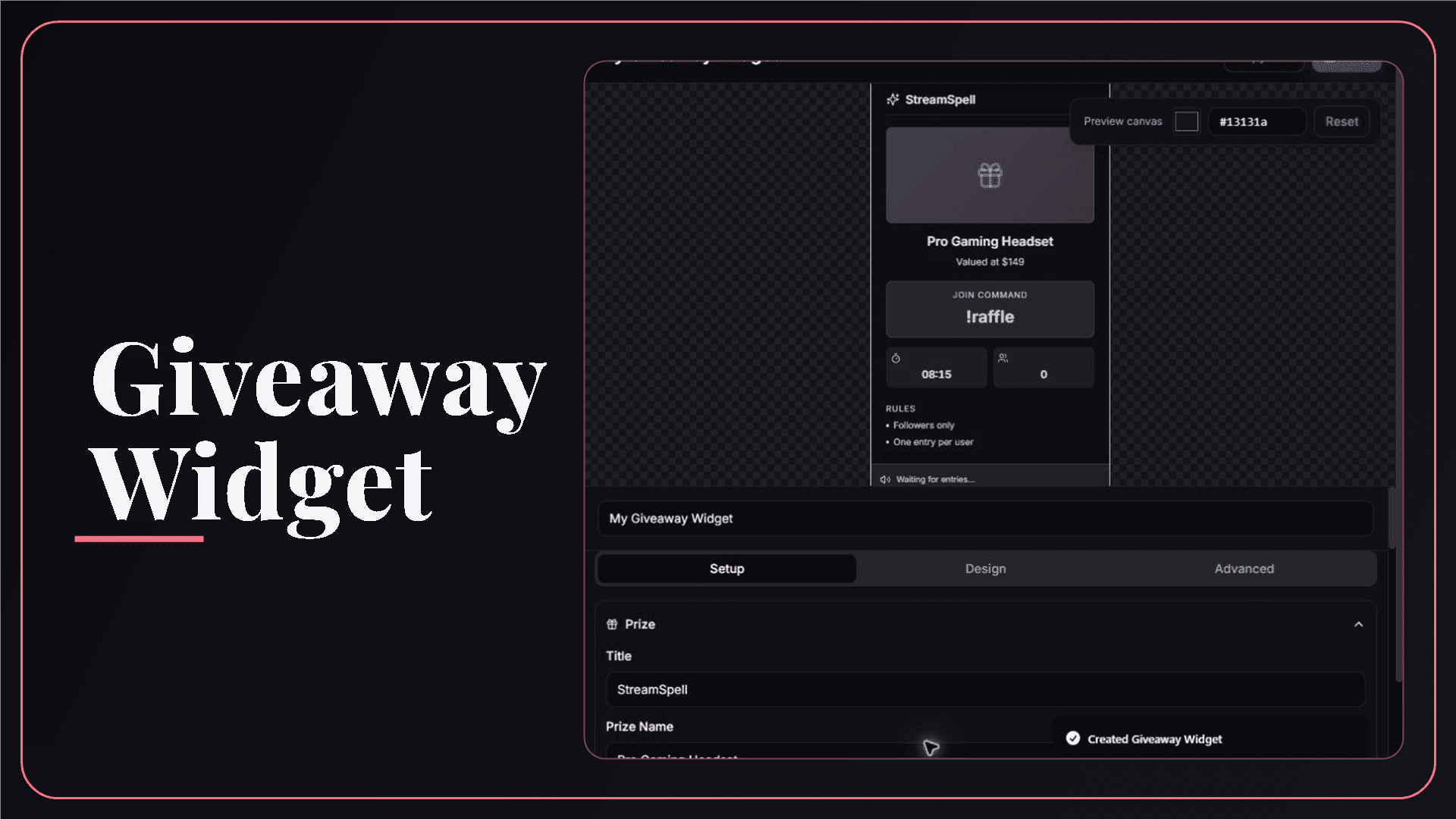
A giveaway is easier to follow when viewers can see the prize, command, time remaining, entry count, status, and result. The StreamSpell Giveaway Widget brings that full visual flow into a customizable Twitch browser-source overlay.
What Is the Giveaway Widget?
The Giveaway Widget manages the viewer-facing presentation of a Twitch giveaway. It can show prize information, an entry command, timer, participant count, rules, open or closed status, drawing animation, and winner screen.
Viewers enter through Twitch chat while the giveaway is open. The widget reconstructs eligible entries from the chat messages received between the start and end of the giveaway.
Giveaway Entry Commands
Viewers can always use !raffle or !join. You can also configure another command in the editor.
Choose between one entry per user or multiple entries. One-entry mode prevents repeated messages from giving the same user extra entries; multiple-entry mode allows repeated valid commands to count according to the selected setup.
Giveaway Customization Options
The main controls include:
Prize: brand, prize name, description or value, and optional image.
Entry: command, call-to-action label, and one or multiple entry mode.
Duration: set the entry window and visible timer.
Rules: display subscriber, follower, custom, and one-entry conditions.
Winner: customize the winner presentation and redemption instructions.
Visibility: show or hide the brand, prize, timer, entries, rules, and ticker.
Design: adjust card, text, accent, border, opacity, and status colors.
Subscriber and Follower Eligibility
Subscribers Only can be checked from Twitch subscriber or founder badges included with chat messages.
Followers Only and custom rules can be displayed in the widget, but the current chat data does not provide a reliable automatic follower check. If follower status or another custom condition matters, the organizer is responsible for verifying the selected winner before awarding the prize.
How to Add the Giveaway Widget to OBS Studio
Follow these steps to set it up:
Open the StreamSpell Widgets Hub and connect Twitch.
Create a Giveaway Widget and enter the exact prize details.
Choose the command, entry mode, duration, visible rules, and winner instructions.
Customize the colors, card, borders, opacity, and visible sections.
Save the widget and copy its private browser-source URL.
Add a new Browser source in OBS Studio and paste the URL.
Test the open, closed, drawing, and winner states before announcing the giveaway.
Using the Giveaway Widget in Streamlabs, StreamElements, or Meld
The official product page lists OBS Studio, Streamlabs Desktop, StreamElements, and Meld Studio compatibility. Add the saved URL through the browser or web-source option in the selected streaming tool.
A Safer Giveaway Checklist
Check these points before going live:
Write the prize, region, deadline, eligibility, and redemption rules clearly.
Explain whether repeat commands create additional entries.
Verify follower or custom eligibility manually before confirming the winner.
Keep the browser-source URL private.
Follow the platform rules and laws that apply to your location and audience.
How the Winner Is Selected
The current widget uses a simple random selection from the eligible entry list. It is not cryptographic, certified, regulated, or independently auditable. Do not describe the widget as a legally certified drawing service.
The winner screen is a presentation layer. The organizer remains responsible for eligibility checks, winner contact, prize fulfillment, and the official rules.
Requirements and Limitations
Chat entry requires a connected Twitch account. Entries depend on the chat history received during the active giveaway window. Test the workflow before a sponsored or high-value prize, and maintain your own record when the giveaway requires formal documentation.
Premium Skins and the Widget Pass
StreamSpell releases new premium skins weekly, including themes inspired by different game genres. Availability varies by widget as the skin catalog expands. When a premium skin is available for this widget, it can be purchased separately or accessed through the Widget Pass.
Why Use StreamSpell for a Twitch Giveaway?
The editor keeps the viewer-facing states together: prize, command, rules, timer, entry count, drawing, and winner. You can design and test the complete flow before it appears in OBS.
Create the Giveaway Widget from the official StreamSpell product page.
💙 Extra Resources
Keep building your stream with practical tools, setup guides, and original StreamSpell designs:
Thank you for following our blog!
See you in the next post 💙
Level up your stream with practical guides for OBS, Twitch, YouTube and Stream Deck.

AI Stream Deck Profile Generator: Build Profiles Faster
Build Stream Deck profiles faster with Deck Smith, a free AI Stream Deck profile generator by StreamSpell.

40 Webcam Overlay Bundle by StreamSpell
Get 40 stream-ready webcam overlays with animated styles, color customization, and themes like anime, neon, RPG, cute, and more.

5 Strategies for Staying Motivated as a Content Creator
Take care of yourself with these quick tips for staying motivated throughout your content creation journey.
Browse All Articles
Browse Stream Overlays