VIEW DEALS

StreamSpell
Train Sim World 6, Stream Deck Profile, Elgato Stream Deck, train simulator, gaming controls, StreamSpell

Train Sim World 6 spreads driving, braking, cab, power, safety, camera and HUD commands across a large keyboard layout. The Train Sim World 6 Stream Deck Profile reorganizes those controls into purpose-built Stream Deck pages with matching train-themed artwork.
The profile is designed to make common commands easier to identify during a session. Instead of searching through unrelated keyboard shortcuts, you can move to the page that matches the current task: driving the train, managing brakes, operating cab systems or changing cameras and HUD information.
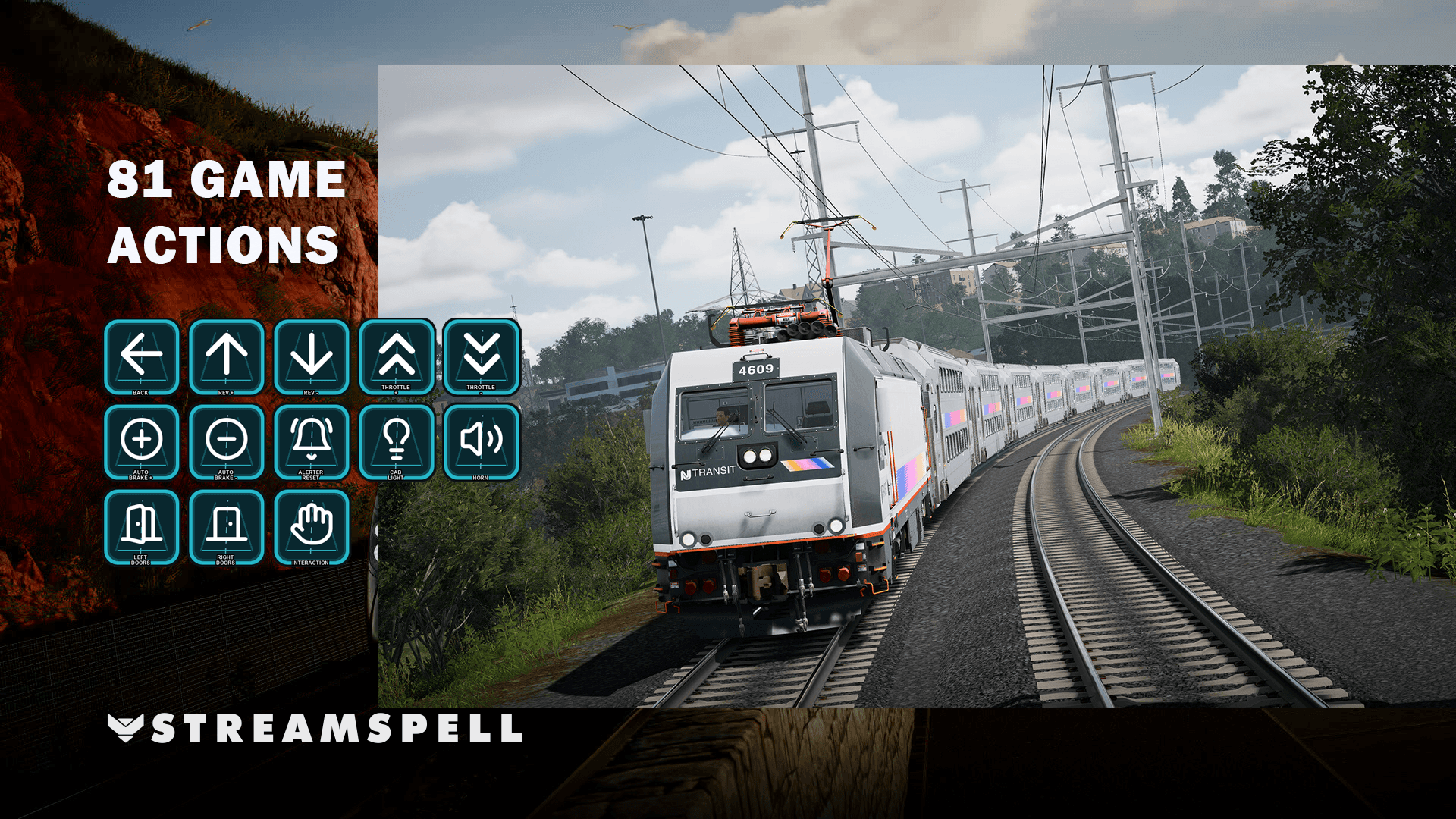
The Train Sim World 6 profile groups driving, brake, cab, power, safety, camera and HUD commands into organized control pages.
What is the Train Sim World 6 Stream Deck Profile?
It is a ready-to-import profile for Windows players who want a visual control surface for Train Sim World 6. The supplied layouts arrive with matching artwork already applied, while the included icon pack gives you additional assets for your own edits and custom buttons.
The Stream Deck buttons act as shortcuts. You remain in control of the train, and the game determines whether an action is available for the current locomotive, menu or operating context.
Driving controls
The driving pages collect controls for the reverser, throttle, automatic brake, horn, doors, interaction commands and other common driving functions. This keeps the main operational group separate from supporting cab and display controls.
Brake systems
Train Sim World 6 includes several kinds of braking input. The profile brings together handbrake, dynamic brake, independent brake, brake key, brake mode, release, hold, air charge and emergency functions.
Because train equipment and simulation state can change how a command behaves, it is important to test the relevant page with the locomotive you plan to drive.
Cab and power controls
Cab and power pages cover engine state, master controls, lights, wipers, sand, cruise functions and circuit-breaker actions. The category layout helps keep vehicle systems visible without putting every button on one crowded page.
Safety, camera and HUD controls
Safety: alerter, vigilance and compatible safety-system actions.
Camera: cab and exterior camera controls.
HUD and information: map, schedule, objectives, speed, signals and score displays.
Separating view and information controls from driving controls makes the profile easier to scan while you are moving between operational and observational tasks.
Supported Stream Deck devices
The product includes ready-to-import layouts for Stream Deck MK2, Neo, Mini, Plus, Plus XL, XL and Galleon 100 SD. The pages are organized for each supported key layout so you can start with the file prepared for your hardware.
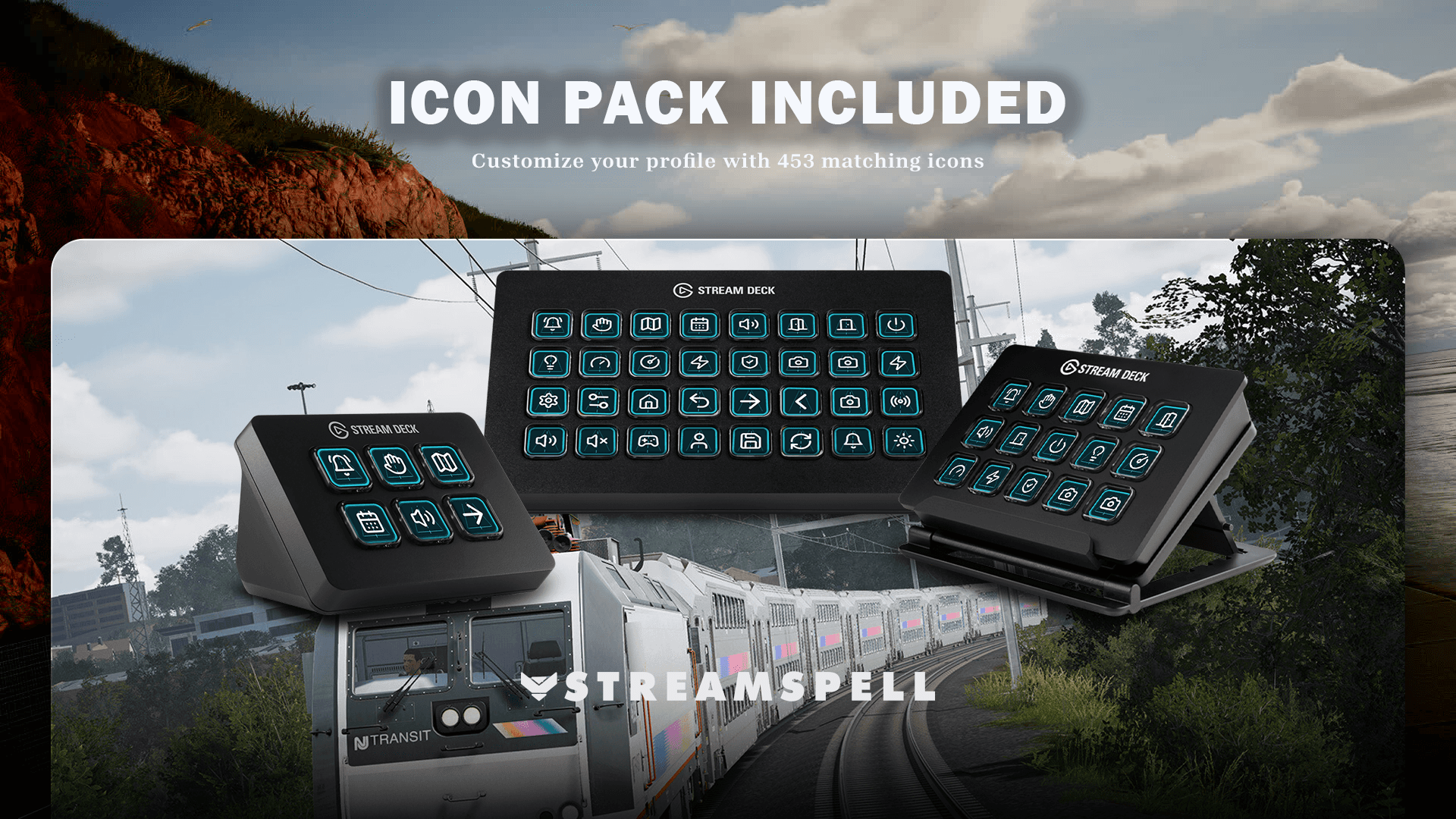
The matching Train Sim World 6 icon pack is included for custom buttons and profile edits.
How to install and configure the profile
Download the Train Sim World 6 product files and extract the archive.
Choose the profile prepared for your Stream Deck model.
Import the profile into the Stream Deck application.
Open each page and identify the controls you expect to use with your preferred locomotive.
Compare the buttons with your current Train Sim World 6 keyboard bindings.
Test the controls in an appropriate game context before a full session.
If you have customized a keyboard shortcut, update the corresponding Stream Deck Hotkey so both sides use the same binding. You can also move buttons or create new pages and apply artwork from the included icon pack.
For the standard import process, see Elgato’s official guide: Download and use Stream Deck Profiles.
Train Sim World 6 Stream Deck Profile FAQ
Does the profile drive the train automatically?
No. It organizes keyboard shortcuts into Stream Deck buttons. You still operate the train and decide when to use each action.
Can the profile be edited?
Yes. You can rearrange imported keys and use the matching icon pack when creating additional buttons.
Which file should I import?
Use the profile made for your exact Stream Deck model. That gives you the layout designed for the available keys on that device.
Explore more gaming Stream Deck profiles
Compare more ready-made layouts in StreamSpell’s guide to Stream Deck Profiles for gamers.
Get the Train Sim World 6 profile
See the current product details and get the Train Sim World 6 Stream Deck Profile from StreamSpell.
This is an independently created StreamSpell product and is not sponsored, approved or affiliated with the game’s developer or publisher. All game names, logos, trademarks and copyrights belong to their respective owners.
Level up your stream with practical guides for OBS, Twitch, YouTube and Stream Deck.

AI Stream Deck Profile Generator: Build Profiles Faster
Build Stream Deck profiles faster with Deck Smith, a free AI Stream Deck profile generator by StreamSpell.

40 Webcam Overlay Bundle by StreamSpell
Get 40 stream-ready webcam overlays with animated styles, color customization, and themes like anime, neon, RPG, cute, and more.

5 Strategies for Staying Motivated as a Content Creator
Take care of yourself with these quick tips for staying motivated throughout your content creation journey.
Browse All Articles
Browse Stream Overlays