VIEW DEALS

StreamSpell
GTA VI, OBS Studio, Stream Deck Profile, Elgato Stream Deck, streaming controls, StreamSpell

The GTA VI OBS Studio Stream Deck Profile gives streamers a GTA VI-inspired control surface for OBS Studio. Its animated themed keys let you switch scenes, manage sources and audio, control recording and handle live-stream actions from supported Stream Deck devices without covering the OBS workspace.
The important distinction is simple: this profile controls OBS Studio, not GTA VI gameplay. The visual theme is inspired by the game, while the actual buttons are built around streaming and production actions.
What is the GTA VI OBS Studio Stream Deck Profile?
It is an import-ready Stream Deck profile for creators who want OBS controls inside a coordinated GTA VI-inspired design. The package includes layouts for supported devices, animated themed icons with matching toggle states and production-focused pages built around real OBS Studio actions.
The profile does not include GTA VI, OBS Studio, a streaming account or Stream Deck hardware. It organizes the controls you use in your own OBS setup and must be configured against your actual scenes, sources and audio devices.
What can it control in OBS Studio?
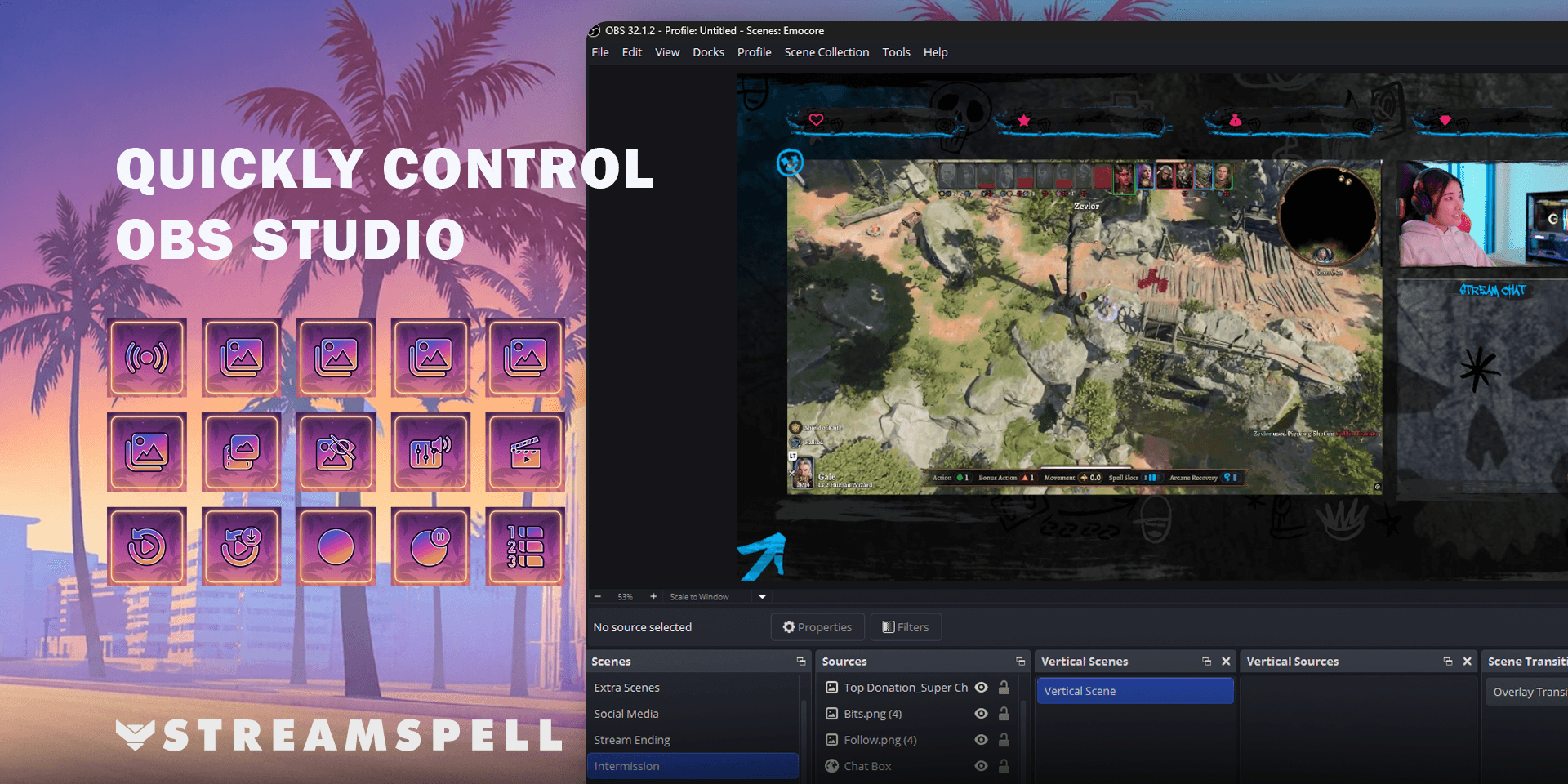
The profile presents OBS Studio actions in a GTA VI-inspired animated interface.
Streaming and recording
Start a live stream, begin or stop recording, pause recording where supported, control Replay Buffer and save a replay from the Stream Deck. These are production controls; pressing them affects the connected OBS Studio session according to its current state and configuration.
Scenes and scene collections
Assign keys to the scenes you use for starting soon, gameplay, chatting, breaks or ending the stream. Scene Collection actions can help creators who maintain separate OBS configurations for different games, channels or production formats.
Sources and visibility
Show or hide selected OBS sources directly from the profile. This can be useful for webcams, overlays, alerts, labels or other elements that you intentionally toggle during a broadcast. Each key still needs to point to a source that exists in your OBS configuration.
Audio and media sources
The profile supports audio mixer and media-source actions provided by the OBS Studio integration. You can map controls to the sources relevant to your setup, then test their state and toggle behavior before going live.
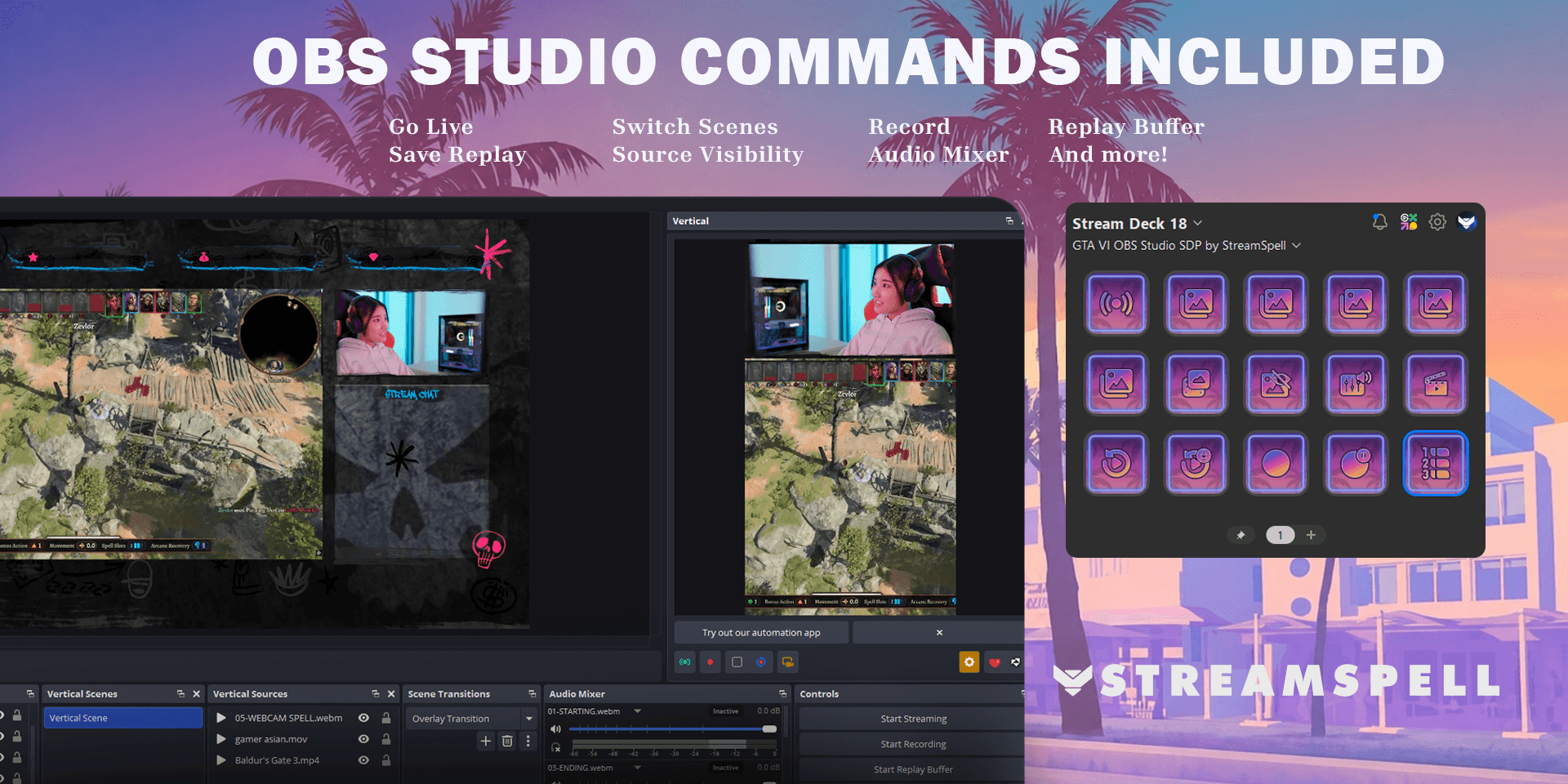
Matching animated icons and toggle states keep OBS Studio controls consistent across the profile.
How to install the GTA VI OBS profile
Install OBS Studio and the official OBS Studio integration for Stream Deck.
Download the product ZIP after purchase and extract it.
Open the folder for your Stream Deck device.
Double-click the matching .streamDeckProfile file.
Choose Install in the Stream Deck software.
Open the imported profile and inspect every page.
If a key shows a question mark, confirm that the OBS Studio plugin and required Stream Deck actions are installed.
Elgato documents profile imports in Download and use Stream Deck Profiles.
For the supported OBS actions and connection requirements, see Elgato’s official Stream Deck and OBS Studio integration guide.
How to connect the profile to your OBS setup
Open OBS Studio before configuring the keys. In Stream Deck, select each action and choose the scene, source, audio device, media source or control it should target. Names differ from one creator’s setup to another, so an imported profile cannot safely guess your exact OBS structure.
Test the profile with a local recording or unlisted rehearsal. Confirm every scene change, source toggle, audio action and Replay Buffer control, and check that toggle-state icons match the behavior you expect. Only use the profile on a live broadcast after the full page has been tested.
Requirements and compatible devices
The current product lists Windows, Elgato Stream Deck software 7.1 or later and the OBS Studio plugin as requirements. Supported profile layouts are provided for Stream Deck Mini, Stream Deck Neo, Stream Deck MK.2, Stream Deck +, Stream Deck XL and CORSAIR Galleon 100 SD.
The official OBS Studio plugin may have its own current software compatibility requirements. If the Stream Deck Marketplace or Elgato support page lists a newer requirement, follow the newer official value.
GTA VI OBS Studio Stream Deck Profile FAQ
Does this profile control GTA VI gameplay?
No. It controls OBS Studio actions through Stream Deck. GTA VI is the visual inspiration for the profile, not the target application for its buttons.
Will my OBS scenes work immediately after import?
The profile imports its layout and actions, but you must connect keys to the scene, source and audio names used in your own OBS setup.
Are the icons animated?
The product includes animated themed icons with matching toggle states. Animation and state behavior can depend on the Stream Deck action and its plugin.
What is not included?
GTA VI, OBS Studio, Stream Deck hardware, streaming accounts and any third-party licenses are not included. This is a digital Stream Deck Profile.
Get the GTA VI OBS Studio profile
See the full product details and get the GTA VI OBS Studio Stream Deck Profile from StreamSpell.
Grand Theft Auto, GTA VI and related names are trademarks of their respective owners. OBS is a trademark of the OBS Project. StreamSpell is not affiliated with or endorsed by Rockstar Games, OBS Project or Elgato.
💙Extra Resources
Find more animated stream overlays, animated stream alerts, animated transitions, Stream Deck Icons, emotes and badges, stream widgets (Chat Box, Event List, Goal Bar), and custom stream designs:
Thank you for following our blog!
See you in the next post 💙
Level up your stream with practical guides for OBS, Twitch, YouTube and Stream Deck.

AI Stream Deck Profile Generator: Build Profiles Faster
Build Stream Deck profiles faster with Deck Smith, a free AI Stream Deck profile generator by StreamSpell.

40 Webcam Overlay Bundle by StreamSpell
Get 40 stream-ready webcam overlays with animated styles, color customization, and themes like anime, neon, RPG, cute, and more.

5 Strategies for Staying Motivated as a Content Creator
Take care of yourself with these quick tips for staying motivated throughout your content creation journey.
Browse All Articles
Browse Stream Overlays