VIEW DEALS

StreamSpell
Final Fantasy XIV, Stream Deck Profile, Elgato Stream Deck, gaming controls, StreamSpell

Bring Eorzea’s menus, targeting, party selection and camera controls to your Stream Deck with a coordinated icon library. In practice, the profile turns supported Stream Deck hardware into a visible companion for the commands you want close during play.
What is the Final Fantasy XIV Stream Deck Profile?
It is a digital, ready-to-import Stream Deck layout for Windows, paired with a matching static icon pack. The design organizes menus, targeting, party selection and camera controls into labeled pages and folders so you can reach related commands without trying to memorize one large keyboard map.
The profile does not play the game for you. You still press every Stream Deck key, and each result depends on the current game context, your installed profile and the keyboard bindings configured in Final Fantasy XIV.

The profile groups menus, targeting, party selection and camera controls into focused pages for faster visual access.
What controls and files are included?
61 keyboard actions organized by category. 79 static PNG icons at 144 × 144 pixels, with category, color and function tags. Matching icon pack, key mapping and setup guide.
The practical value is consistency: game actions, folder navigation and matching icon art use one visual system. That makes the profile useful as a ready-made layout and as a base you can customize for your own preferred commands.
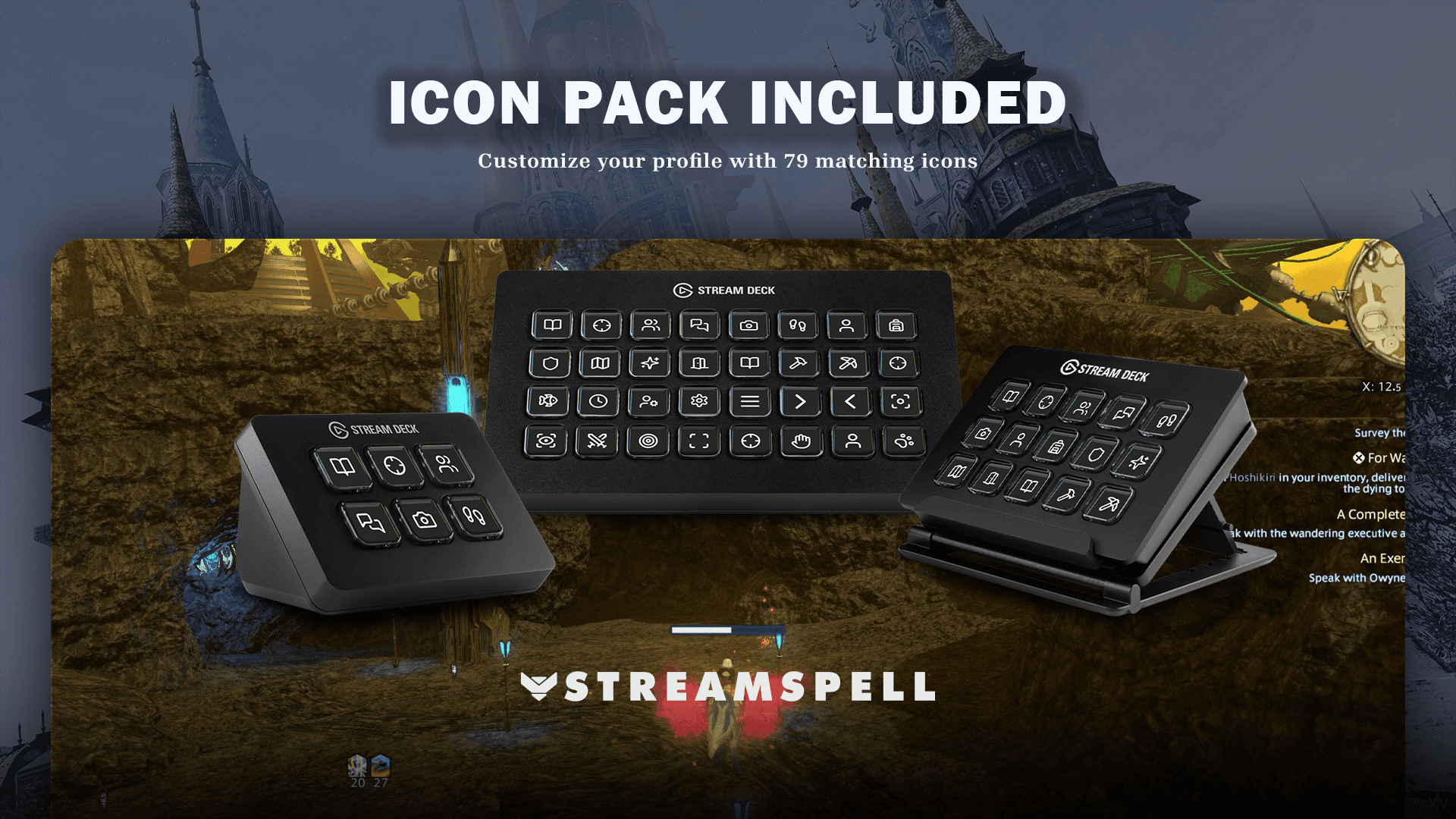
The included static icon pack lets custom keys keep the same Final Fantasy XIV-inspired visual system.
Compatible Stream Deck devices
Stream Deck Mini, Neo, MK2, +, +XL, XL and Galleon 100 SD. Folder navigation keeps all included actions accessible. Dial controls are not included.
Requirements and important setup details
FINAL FANTASY XIV for Windows using default keyboard bindings and Direct Chat disabled. Menus and features require the corresponding game unlocks. Movement assumes Standard Type. Uses built-in Stream Deck Hotkey and Folder actions. Match customized bindings and keyboard layout before use. Mouse aiming and targeting remain on your mouse.
Before a long session, compare the imported keys with your current in-game bindings. If you changed a shortcut or use a different keyboard layout, update the corresponding Hotkey action in Stream Deck so the profile and game agree.
How to install the profile
1. Download and extract the files
After purchase, download the product ZIP and extract it on your Windows computer. Open the folder for the Stream Deck model you use.
2. Import the correct profile
Double-click the matching .streamDeckProfile file. When Stream Deck asks for confirmation, choose Install.
3. Review the pages and folders
Open the imported Final Fantasy XIV profile in the Stream Deck application. Move through its folders, confirm that the icons render correctly and identify the commands you expect to use most.
4. Test against your current bindings
Launch Final Fantasy XIV in a safe context and test the imported shortcuts one group at a time. Keep mouse-driven aiming, targeting and other contextual inputs on the controls specified by the product requirements.
For the general import workflow, see Elgato’s official guide: Download and use Stream Deck Profiles.
How to configure the profile for your setup
Start with the supplied layout, then move the keys you use most to the first page. You can edit imported keys in Stream Deck, create additional folders and apply the included icons to new or changed commands without losing the coordinated look.
If an action does not respond, first compare its assigned keyboard shortcut with the current Final Fantasy XIV binding. Then confirm you imported the correct device profile and that the command is available in the current game mode, character, equipment or menu context described above.
Final Fantasy XIV Stream Deck Profile FAQ
Does the profile automate gameplay?
No. It provides organized shortcuts that you trigger yourself. Game state, unlocked features, equipped items, selected characters and current bindings can affect what an action does.
Can I change the keys and icons?
Yes. Elgato allows imported profile keys and actions to be customized. The included matching icon pack is there so your edited or newly added keys can stay visually consistent.
Will the same file fit every supported device?
Use the profile file prepared for your specific Stream Deck model. Folder navigation keeps the action groups accessible across the supported key layouts, while dial controls are not included unless the product description explicitly says otherwise.
Explore more gaming Stream Deck profiles
Compare this setup with other game-focused options in StreamSpell’s guide to Stream Deck Profiles for gamers.
Get the Final Fantasy XIV profile
See the live product details and get the Final Fantasy XIV Stream Deck Profile from StreamSpell.
Independent StreamSpell product. Not affiliated with, endorsed by or sponsored by Square Enix. Game names and related trademarks belong to their respective owners.
Level up your stream with practical guides for OBS, Twitch, YouTube and Stream Deck.

AI Stream Deck Profile Generator: Build Profiles Faster
Build Stream Deck profiles faster with Deck Smith, a free AI Stream Deck profile generator by StreamSpell.

40 Webcam Overlay Bundle by StreamSpell
Get 40 stream-ready webcam overlays with animated styles, color customization, and themes like anime, neon, RPG, cute, and more.

5 Strategies for Staying Motivated as a Content Creator
Take care of yourself with these quick tips for staying motivated throughout your content creation journey.
Browse All Articles
Browse Stream Overlays