VIEW DEALS

Daniel Mayhe
Bingo Card Widget, OBS Studio, Twitch chat, stream challenges

A bingo card gives viewers several small moments to watch for instead of one distant goal. The StreamSpell Bingo Card Widget lets you create a browser-source grid with your own challenges, marked cells, optional free center, and live interaction.
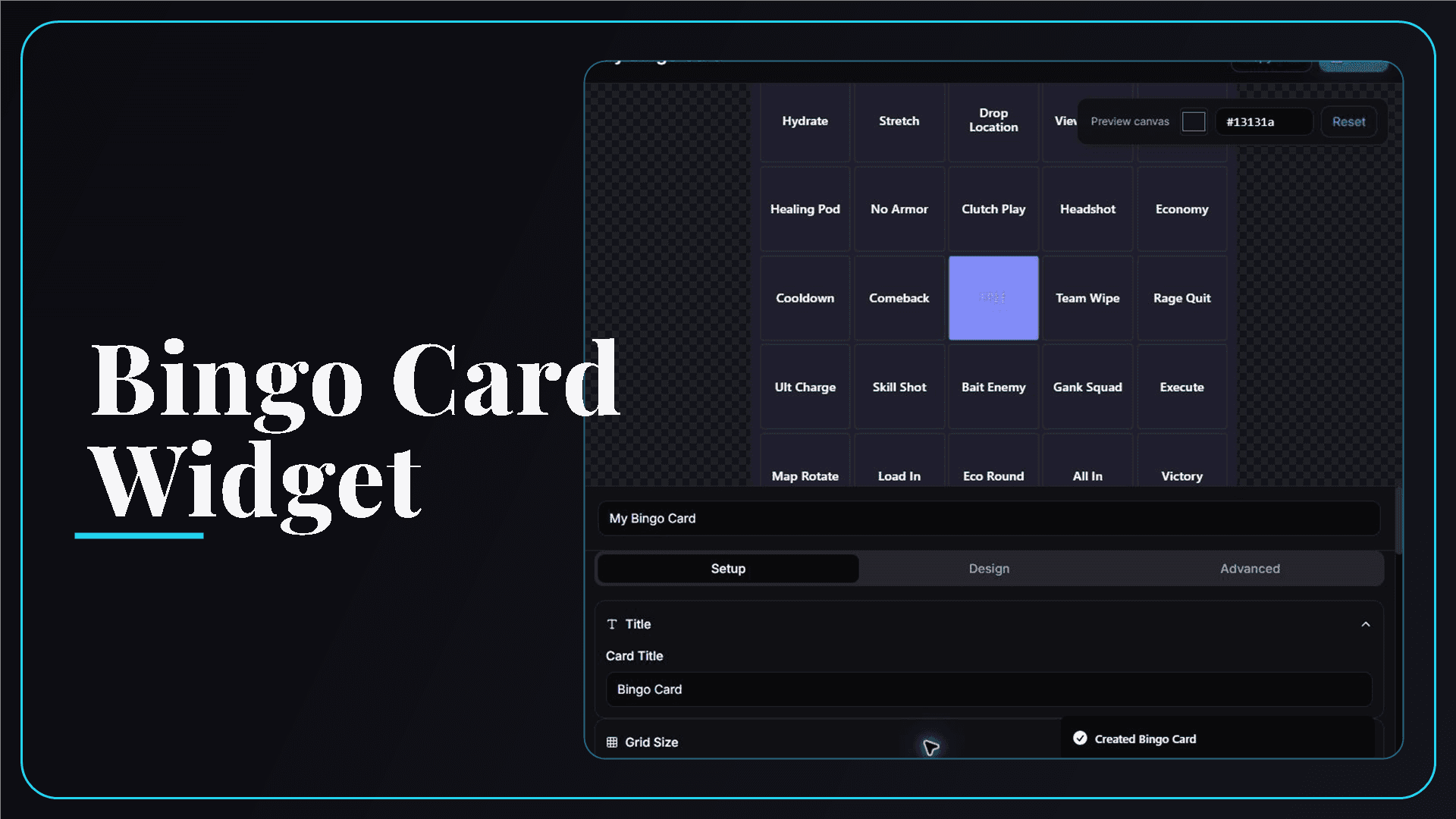
StreamSpell Bingo Card Widget editor with custom challenges, marked cells, and grid controls.
What Is the Bingo Card Widget?
The Bingo Card Widget is an interactive stream checklist arranged as a grid. Each cell contains the text you choose, such as Hydrate, Viewer Pick, Clutch Play, Bonus Round, or a game-specific objective.
Cells can be marked manually in the editor or through the optional Twitch chat command. The saved widget is added to OBS Studio through a private browser-source URL.
Bingo Card Sizes and Content
Choose a grid from 3×3 through 7×7. The default is 5×5, and an optional free center gives the familiar bingo-card structure.
Larger grids hold more ideas but require more screen space. The documented minimum layout is 400 by 400 pixels, and small sources can make longer cell text difficult to read. Keep each challenge short and preview the complete card at the size viewers will actually see.
Bingo Card Customization Options
The main controls include:
Title: write a name for the card.
Grid: choose 3×3, 4×4, 5×5, 6×6, or 7×7.
Cells: enter custom text and save manual marked states.
Free center: enable or disable the middle free cell.
Colors: customize the card, regular cells, marked cells, text, free cell, accent, and border.
Surface: adjust opacity, border width, spacing, and corner style.
Editor controls include Mark Random, Clear Marks, Shuffle, Test Bingo, and Reset.
How the Twitch Mark Command Works
The current command format is !mark <number>. For example, !mark 7 marks cell 7 when that cell exists in the selected grid. Invalid numbers are ignored.
The command is not currently restricted by viewer role. Chat-triggered marks affect the running browser source and are runtime-only; they do not rewrite the saved card. Manual marks made in the editor can be saved.
How to Add the Bingo Card to OBS Studio
Follow these steps to set it up:
Create a Bingo Card Widget in the StreamSpell Widgets Hub.
Choose the grid size and decide whether to use a free center.
Replace every cell with a short challenge or event.
Customize marked states, colors, opacity, borders, and spacing.
Use the editor tests to check the card before saving.
Copy the browser-source URL and add it to OBS Studio as a Browser source.
Size the source large enough for the selected grid and longest cell text.
Bingo Ideas for Different Streams
Useful bingo ideas include:
Gameplay events, habits, and common mistakes
Challenge-run objectives
Community watch-party predictions
Creative or building milestones
Co-op achievements for a team stream
Requirements and Responsible Use
The card itself works as a browser-source display. Twitch is required for live !mark messages. Because the command is not role-gated, disable or avoid chat marking if unrestricted changes would disrupt the format.
This widget is intended for stream challenges and visual participation. It is not a financial bingo system, betting product, certified draw, or guarantee of prizes.
Where to Create the Bingo Card Widget
The Bingo Card Widget is available directly in the StreamSpell Widgets Hub. The live builder link in this guide is the correct destination; the widget is not listed as a separate product in the StreamSpell Store.
Why Use StreamSpell for Stream Bingo?
The real editor preview makes grid size, marked states, free center, and long text visible before the card reaches OBS. Built-in tests let you see the completed moment while you still control the design.
Create your Bingo Card Widget in the StreamSpell Widgets Hub.
A clear card, short challenges, and a quick test before going live are usually all you need to turn a familiar format into a repeatable community segment.
💙Extra Resources
Find more animated stream overlays, animated stream alerts, animated transitions, Stream Deck Icons, emotes and badges, stream widgets (Chat Box, Event List, Goal Bar), and custom stream designs:
Thank you for following our blog!
See you in the next post 💙
Level up your stream with practical guides for OBS, Twitch, YouTube and Stream Deck.

AI Stream Deck Profile Generator: Build Profiles Faster
Build Stream Deck profiles faster with Deck Smith, a free AI Stream Deck profile generator by StreamSpell.

40 Webcam Overlay Bundle by StreamSpell
Get 40 stream-ready webcam overlays with animated styles, color customization, and themes like anime, neon, RPG, cute, and more.

5 Strategies for Staying Motivated as a Content Creator
Take care of yourself with these quick tips for staying motivated throughout your content creation journey.
Browse All Articles
Browse Stream Overlays