
VIEW DEALS
Julia Pazin
Best Stream Overlays, FPS, Action & Cyberpunk Overlays

Marathon Season 2 is almost here, and it is bringing a darker, more intense atmosphere to Tau Ceti IV.
Season 2 begins on June 2, together with Marathon’s Open Play Week, running from June 2 to June 9 on Steam, PlayStation 5, and Xbox Series X|S. During this period, players will be able to try the full game, explore the new season, and carry their progress forward.
For streamers, this is a great moment to prepare your channel for Marathon content, especially if you want your stream setup to match the new darker tone of Season 2.
Marathon Season 2 Brings a Darker Night Marsh Experience
One of the biggest highlights of Marathon Season 2 is the new night version of Dire Marsh.
This darker zone changes the way players move, fight, and survive. Visibility becomes more limited, flashlights matter more, and the environment feels slower, more tactical, and closer to a survival horror experience.
With Night Marsh, signal flares, Vector rounds, darker paths, hidden threats, and new ways to reveal enemies and the environment, Season 2 has a strong Nightfall-inspired vibe.
That makes it a perfect update for streamers who want their Marathon stream overlays to feel more atmospheric, cinematic, and connected to the game’s new direction.
Get Your Stream Ready with Marathon Stream Overlays
If you are planning to stream Marathon Season 2, Open Play Week, or Night Marsh gameplay, your overlay can help your channel feel more polished from the first live session.
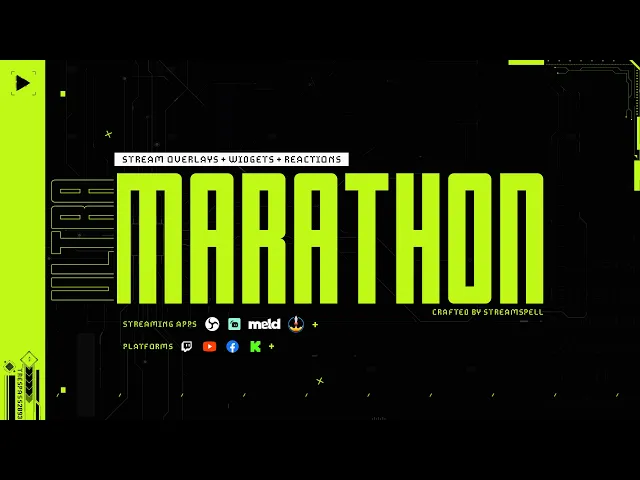
The Marathon Stream Overlays and Widgets package by StreamSpell was created for streamers who want a futuristic sci-fi stream setup inspired by Marathon’s visual identity.
This pack is a strong fit for Marathon streams, sci-fi FPS content, extraction shooter gameplay, tactical team streams, and creators who want a clean but high-impact visual identity for Twitch, YouTube, Kick, and Facebook Gaming.
It is compatible with OBS Studio, Streamlabs Desktop, and StreamElements.
Customize Your Marathon Stream Overlay Colors
The best part is that you do not need to use the Marathon overlay only in its original colors.
If you want your stream setup to match the darker Marathon Season 2 Nightfall vibe, you can adjust the colors using Color Correction filters inside Streamlabs Desktop.
This allows you to quickly shift the look of your overlays and make them feel:
Darker and more atmospheric
Better matched to Night Marsh
More aligned with your personal branding
Closer to your team colors
Ready for seasonal Marathon content
This is a simple way to keep the original sci-fi identity of the package while giving your stream a darker Season 2 look.
Watch the Marathon Overlay Color Customization Tutorial
We also have a YouTube tutorial showing how to customize the colors of the Marathon stream overlays.
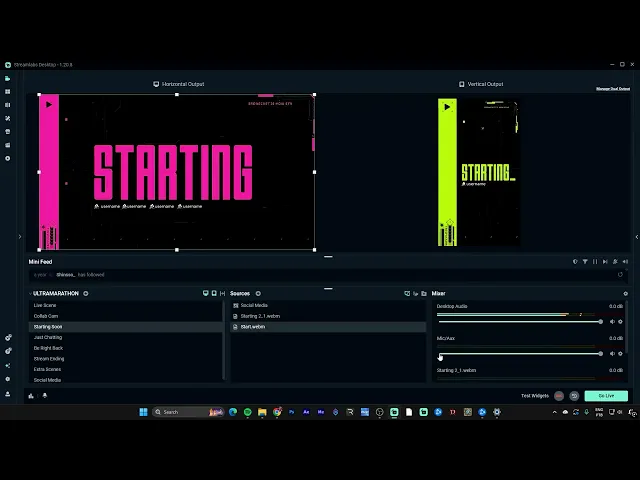
In this tutorial, you will learn how to add Color Correction filters and quickly copy those settings to other sources.
This method works inside Streamlabs Desktop and can also be used in other streaming apps that support filters on sources, such as OBS Studio and Meld.
Important note: this is a YouTube Studio link, so it may only work for your logged-in channel account. For the public blog post, you may want to manually replace it with the public YouTube video link before publishing.
Why This Overlay Setup Works for Marathon Season 2
Marathon Season 2 is not just adding new content. It is changing the mood of the game.
With Night Marsh, darker environments, tactical visibility, new gear, and more survival-focused exploration, the visual tone feels much more mysterious and intense.
That is exactly why customizing your stream overlay colors can make such a difference.
Instead of using a generic FPS overlay, you can create a Marathon stream setup that feels connected to the new season, while still keeping your channel branding consistent.
If you are streaming Open Play Week, exploring Night Marsh with your crew, or creating Marathon content for Twitch, YouTube, or Kick, this is a great time to upgrade your stream visuals.
Get the Marathon Stream Overlays and Widgets
Ready to prepare your stream for Marathon Season 2?
Get the Marathon Stream Overlays and Widgets package here!
Customize the colors, match the Nightfall vibe, and get your channel ready for Marathon’s new season.
💙 Extra Resources
Want to explore more stream overlays, widgets, Stream Deck assets and creator tools in one place? Visit the new StreamSpell Store here.
Find more animated stream overlays, animated stream alerts, animated transitions, Stream Deck Icons, emotes and badges, stream widgets, Chat Box, Event List, Goal Bar and custom stream designs:
Thank you for following our blog!
See you in the next post 💙
Level up your stream with practical guides for OBS, Twitch, YouTube and Stream Deck.

AI Stream Deck Profile Generator: Build Profiles Faster
Build Stream Deck profiles faster with Deck Smith, a free AI Stream Deck profile generator by StreamSpell.

40 Webcam Overlay Bundle by StreamSpell
Get 40 stream-ready webcam overlays with animated styles, color customization, and themes like anime, neon, RPG, cute, and more.

5 Strategies for Staying Motivated as a Content Creator
Take care of yourself with these quick tips for staying motivated throughout your content creation journey.
Browse All Articles
Browse Stream Overlays