VIEW DEALS

StreamSpell
Audio Mixer

Turn a loud game down without lowering your call or music. Audio Mixer puts separate app volumes, mute controls and audio-device switching on your CORSAIR XENEON EDGE. Instead of treating every sound as one master volume, you can adjust the part of your mix that needs attention.
Live meters help identify the app producing sound, while presets let you return to a saved mix. The useful distinction is between controlling an individual app and changing your speakers or microphone: the widget provides controls for both, with Spellcast supplying the connection to your Windows PC.
View Audio Mixer on Elgato Marketplace.
Every app, its own volume
A slider and mute button for each app playing sound: games, music, chat, browser and more.
Your speakers and microphone always at the top.
Live meters show which app is making sound right now.
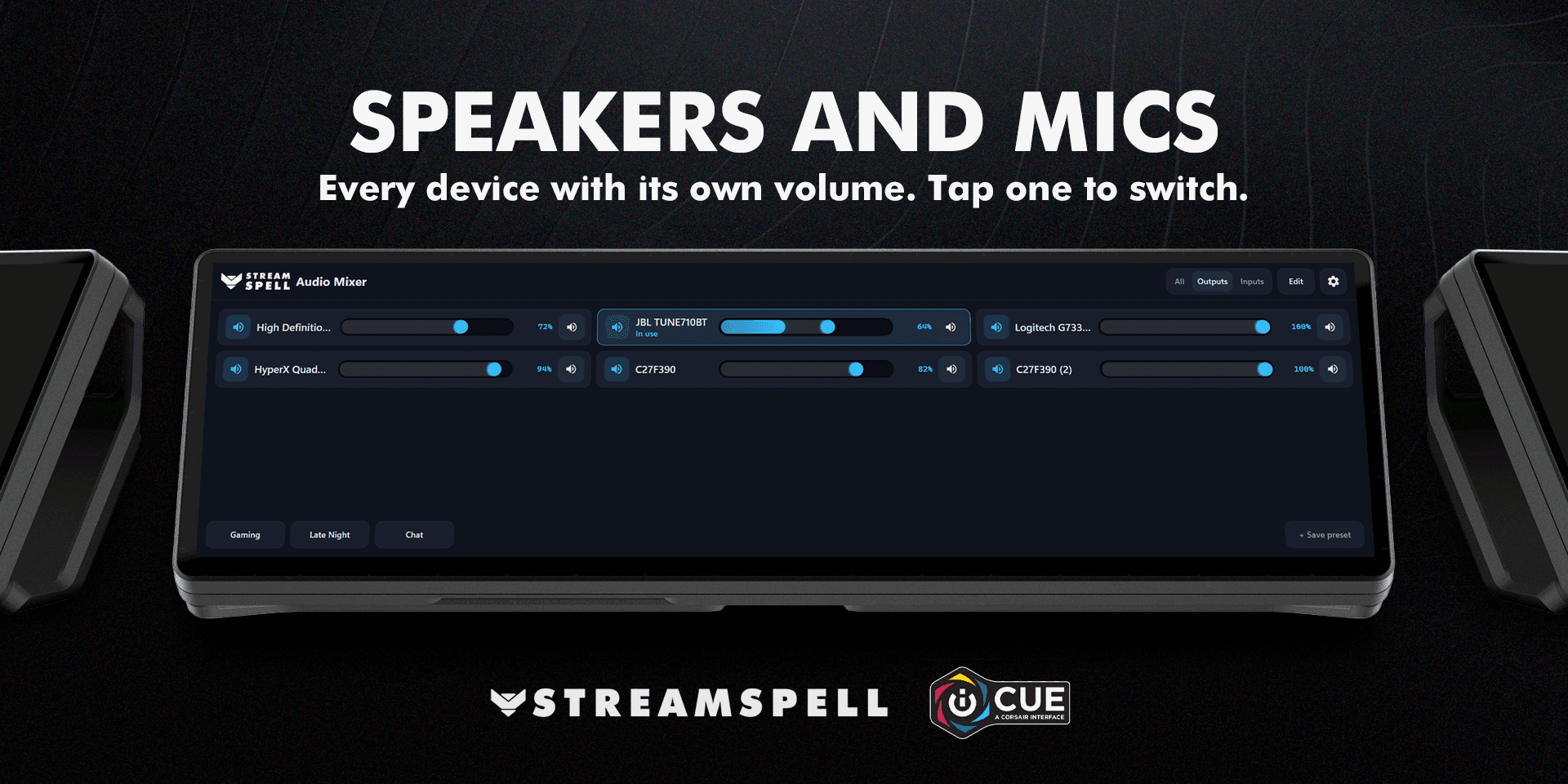
Speakers and mics
See every speaker, headset and microphone with its own volume.
Tap one to switch to it.
Presets
Save your mix and bring it back with one tap.
Rename presets with the on-screen keyboard.
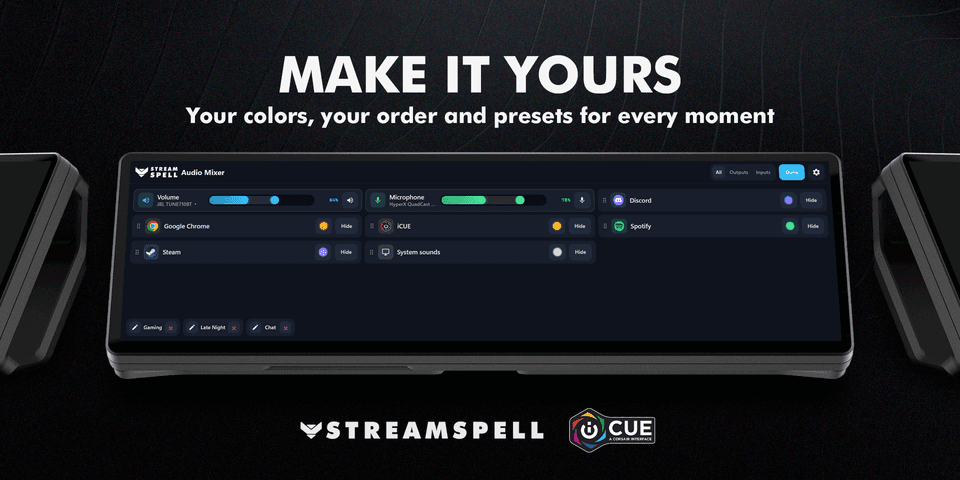
Make it yours
Pick a color for each app and drag apps into your own order.
Hide the apps you never change.
Choose classic rows or a mixing desk with upright faders on wide sizes.
Layouts for every horizontal and vertical dashboard size.
Install and keep Spellcast running on the same PC, then link the widget with the short code Spellcast shows you.
Compatibility: Windows, CORSAIR iCUE 5.47 or newer, a supported dashboard LCD device and the Spellcast companion app.
Product names and trademarks belong to their respective owners.
Getting started
New to Spellcast? Open this widget’s Elgato Marketplace page and use its Related Download link to get the StreamSpell companion app. Install Spellcast on the same Windows PC and keep it running while using the widget.
Check the Windows, iCUE and dashboard requirements above before installing. Add the widget to a supported dashboard layout, then follow the setup steps for this product. Keep Spellcast running on the same PC.
Start with one ordinary action or information view, confirm that it responds, and then adjust the colors and layout for your screen. Available controls and data still depend on the connected app or service.

Get Audio Mixer on Elgato Marketplace
Check the current listing for the included files, device compatibility and setup requirements, then get Audio Mixer. The linked product is the exact StreamSpell Marketplace listing described in this guide.
Level up your stream with practical guides for OBS, Twitch, YouTube and Stream Deck.

AI Stream Deck Profile Generator: Build Profiles Faster
Build Stream Deck profiles faster with Deck Smith, a free AI Stream Deck profile generator by StreamSpell.

40 Webcam Overlay Bundle by StreamSpell
Get 40 stream-ready webcam overlays with animated styles, color customization, and themes like anime, neon, RPG, cute, and more.

5 Strategies for Staying Motivated as a Content Creator
Take care of yourself with these quick tips for staying motivated throughout your content creation journey.
Browse All Articles
Browse Stream Overlays